View Build Results
Build results provide detailed insights into each successful or failed build. You can review execution outcomes, identify issues, and access any generated artifacts. The build results include the following tabs:
-
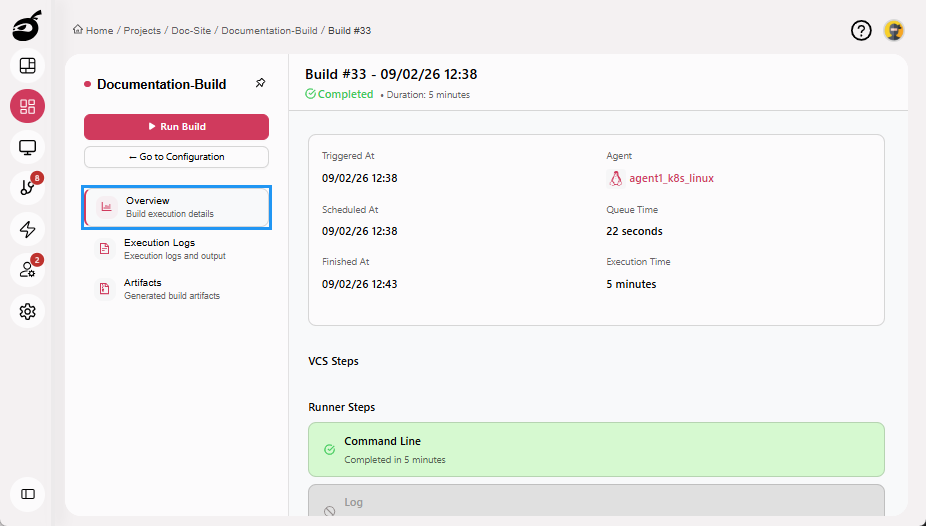
Overview: Displays key details such as trigger information, build duration, and agent details.
-
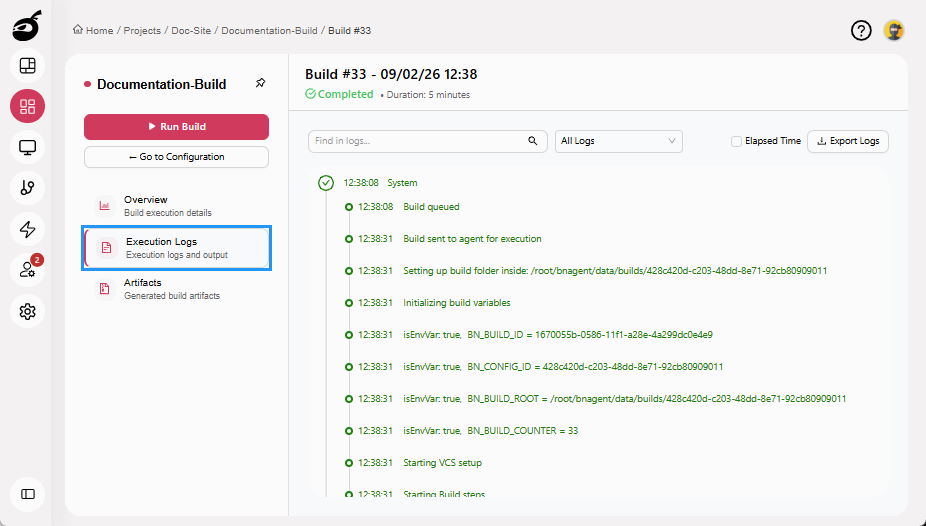
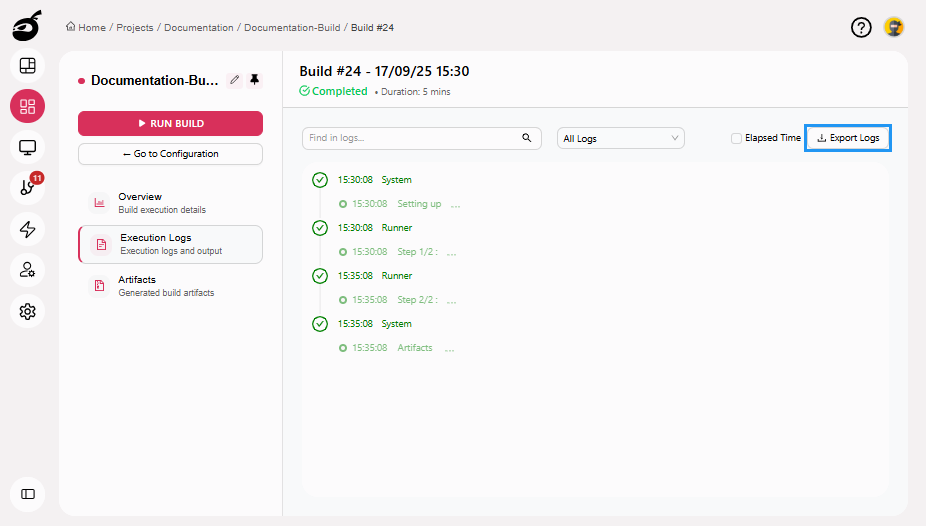
Execution Logs: Provides a step-by-step record of the build process, useful for reviewing executed actions and diagnosing errors.
-
Artifacts: Lists the files generated during the build, if artifact publishing is configured.

Accessing Build Results
-
Navigate to Projects
 to access the project management interface.
 -
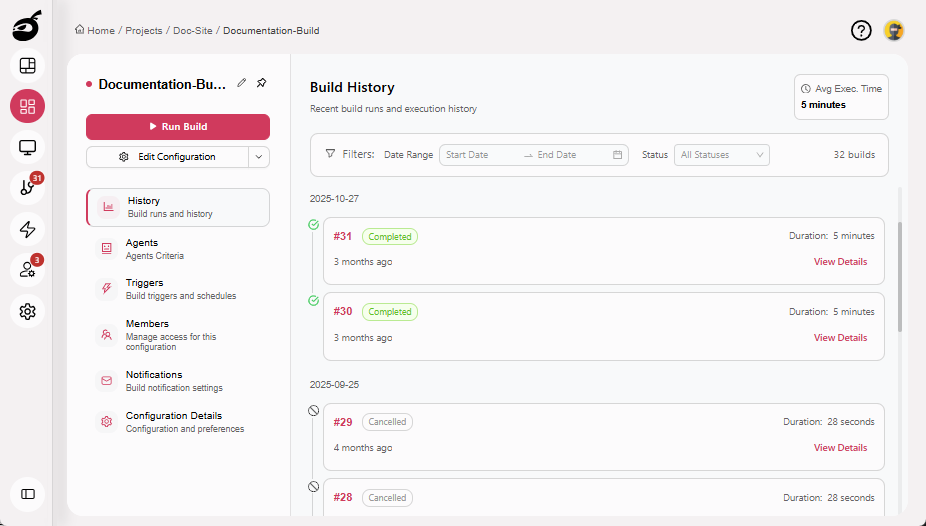
Select the build configuration for which you want to view the results.
-
Click Build Number or View Details to view results.
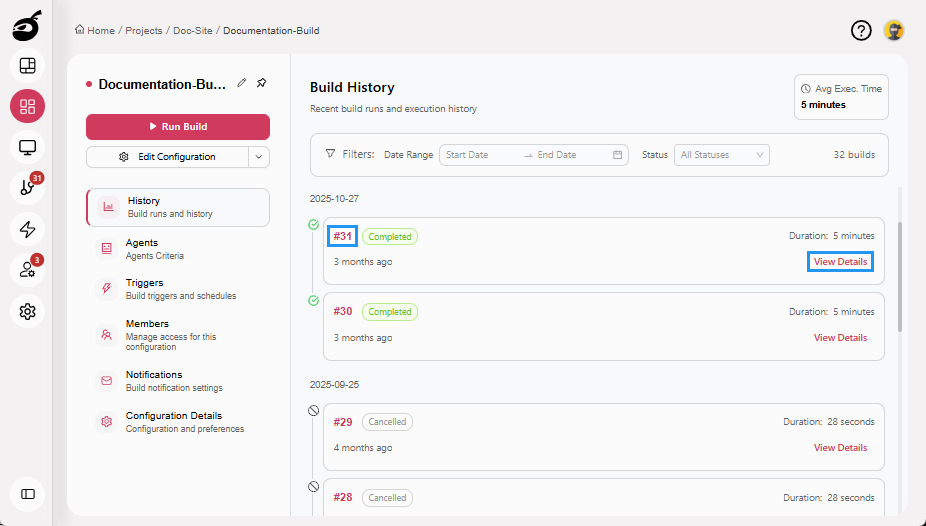 This opens the Overview tab, where you can view key details such as trigger information, duration, and agent information.
View Build Log
The Build Log tab provides a detailed, timestamped view of the build’s execution process. It allows you to trace execution steps, identify issues, and analyze logs through filtering and search tools.
Search Logs
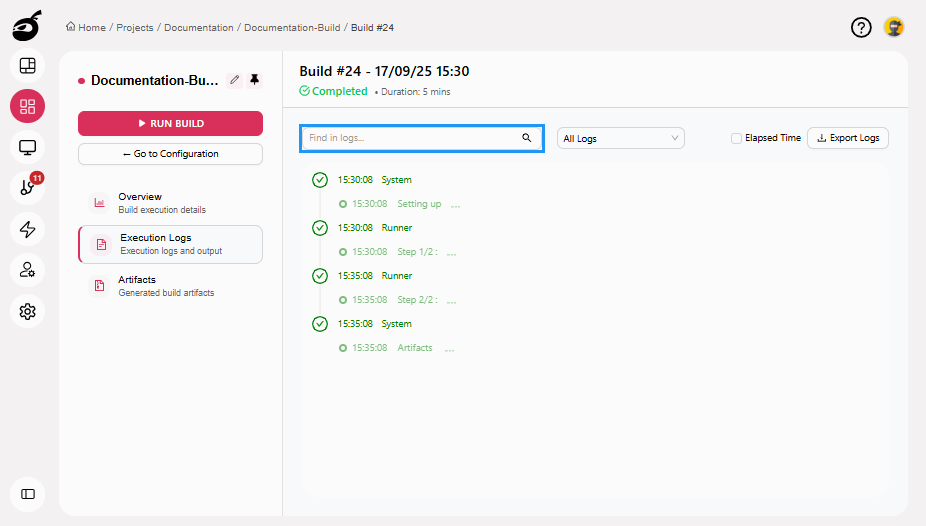
Use the search bar to quickly locate specific keywords or messages within the log. To search within the build log:
-
Locate the Search Bar at the top of the log viewer.
-
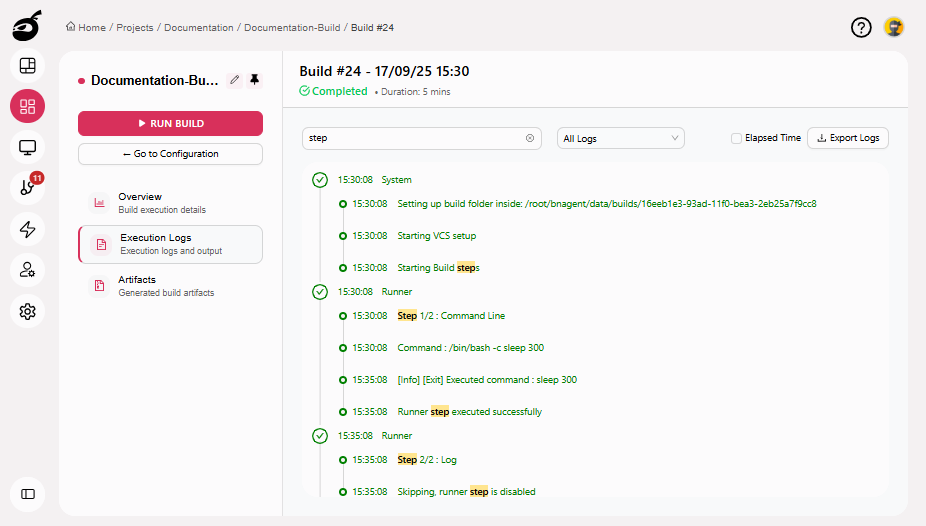
Enter a keyword or phrase. Matching words will be highlighted, allowing for quick navigation through the log.
Filter Logs
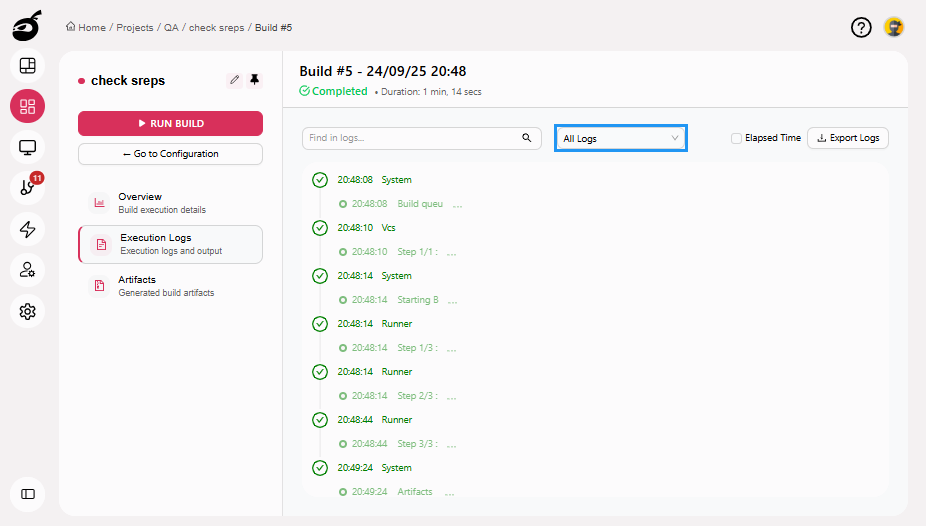
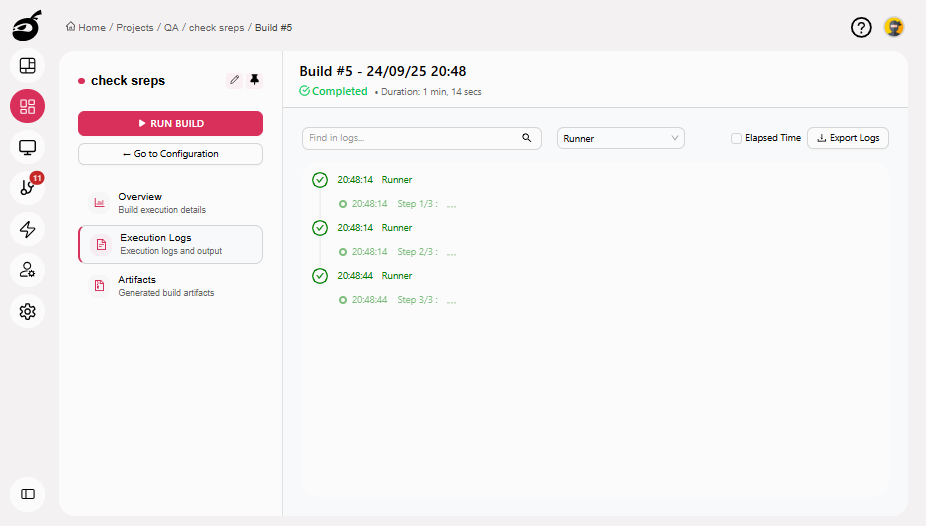
Filtering helps you focus on issues related to a specific system without manually scanning the entire log. You can filter the log by VCS, Runner, or System to view only the relevant entries. To filter the log:
-
Locate the Filter dropdown menu.
-
Choose one of the following options:
- All Logs: Displays the complete build log.
- VCS: Shows logs related to version control operations.
- Runner: Shows logs generated during build execution.
- System: Displays logs and events from the build system or infrastructure.
Export Logs
Download the complete build log for offline analysis or archival. To download the build log:
-
Click Export Logs. A CSV file will be downloaded to your system for offline review or sharing.
Limitations
The system limits log data and metadata to a maximum size of 16 MiB. When this threshold is exceeded, it does not save additional logs.