Approve or Reject Registration Request
As an administrator, you can approve or reject registration requests new users submit. This ensures that only authorized individuals can join and access projects or builds.
Access, Approve, and Reject Registration Request
Follow these steps to review and process registration requests:
Step 1: Access Registration Requests
-
Navigate to Users
 .
.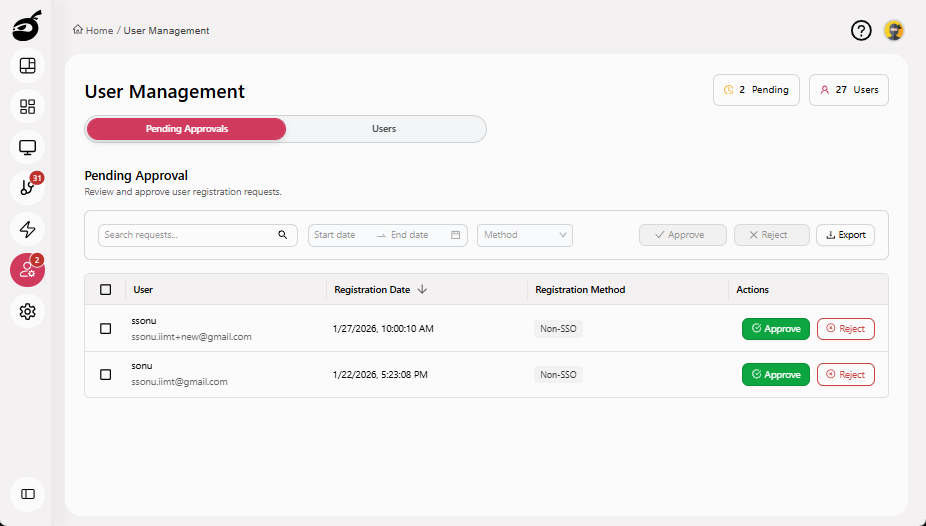
By default, the Pending Approvals tab is displayed, showing all incoming user registration requests pending review. Each request will typically display the user’s name, email address, registration date, and registration method.
Step 2: Review Registration Information
-
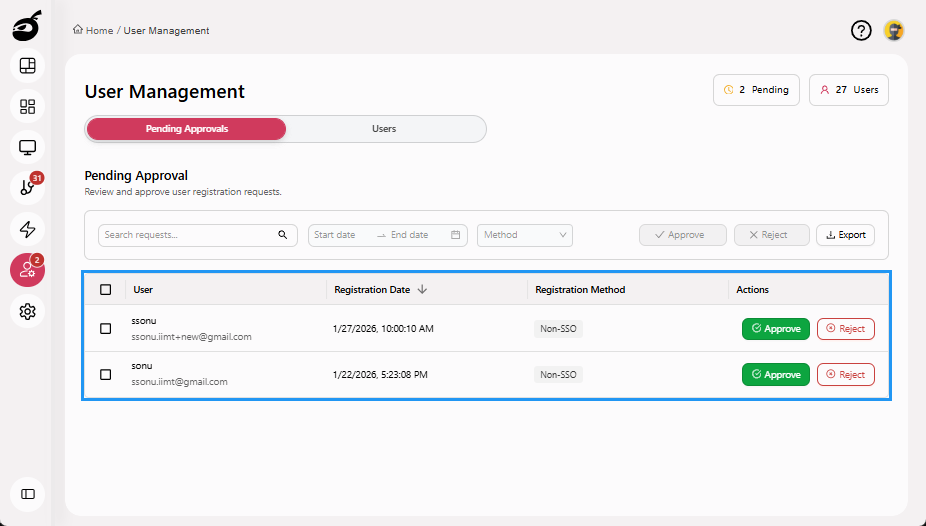
Carefully review the registration details for each user, which include:
- Full Name
- Email Address
- Registration Date
- Registration Method
-
If necessary, cross-check the provided details to ensure the request aligns with your organization’s policies or needs.
Step 3A: Approve Registration Request
-
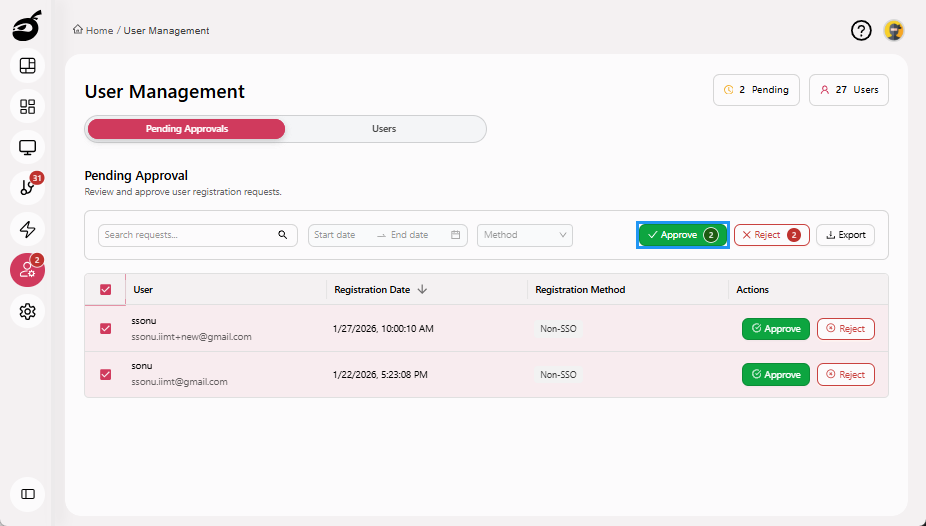
Click Approve next to the registration request.
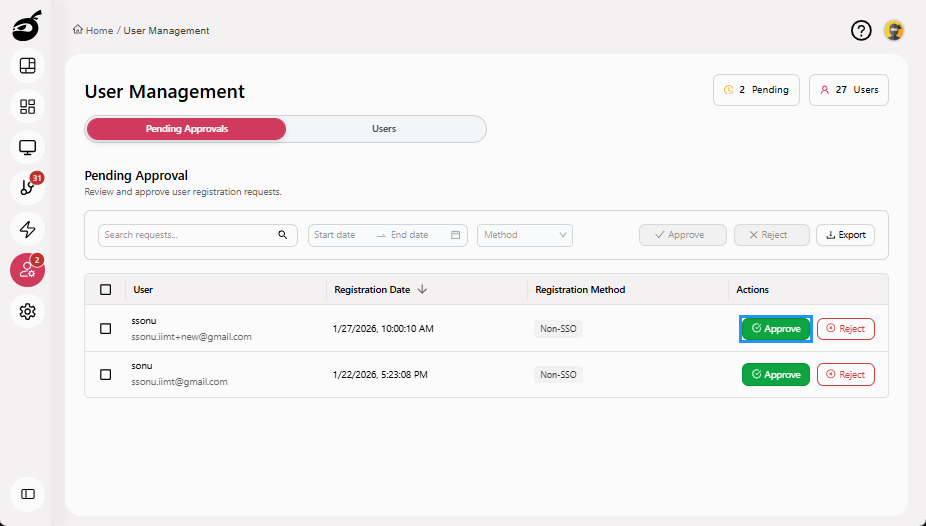
You can also select multiple requests and approve them at once. Check the checkboxes of the requests you want to approve and click Approve present above the requests grid.
-
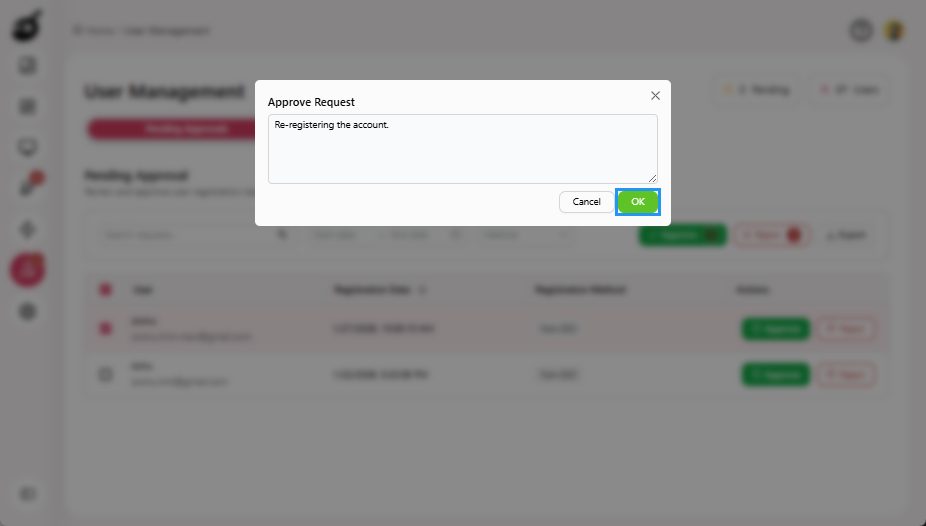
Provide a brief message explaining why the request was approved and click OK to approve the request. This step is optional but recommended for clarity.
Step 3B: Reject Registration Request
-
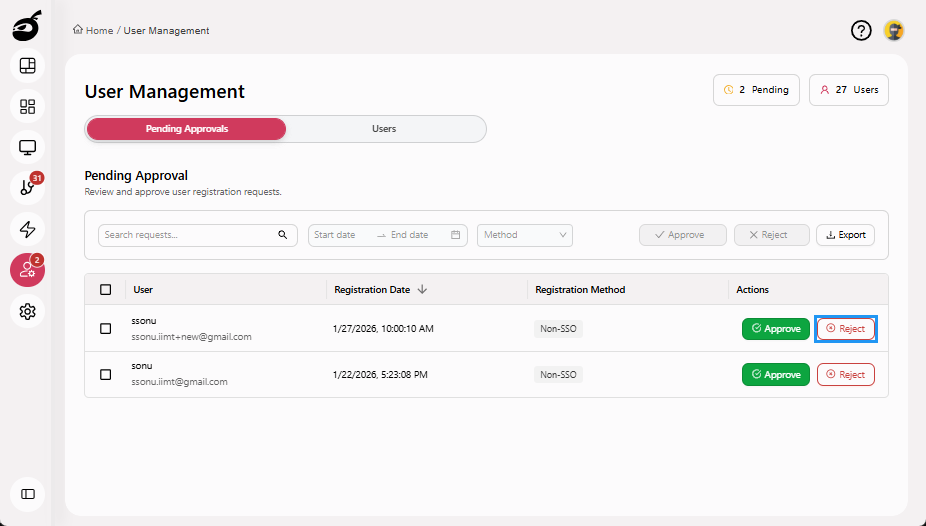
Click Reject next to the registration request.
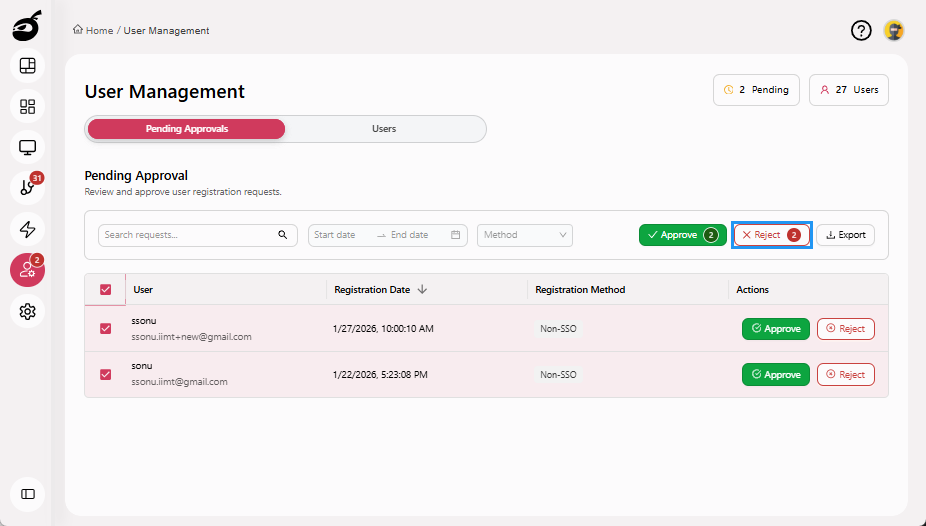
You can also select multiple requests and reject them at once. Check the checkboxes of the requests you want to reject and click Reject present above the requests grid.
-
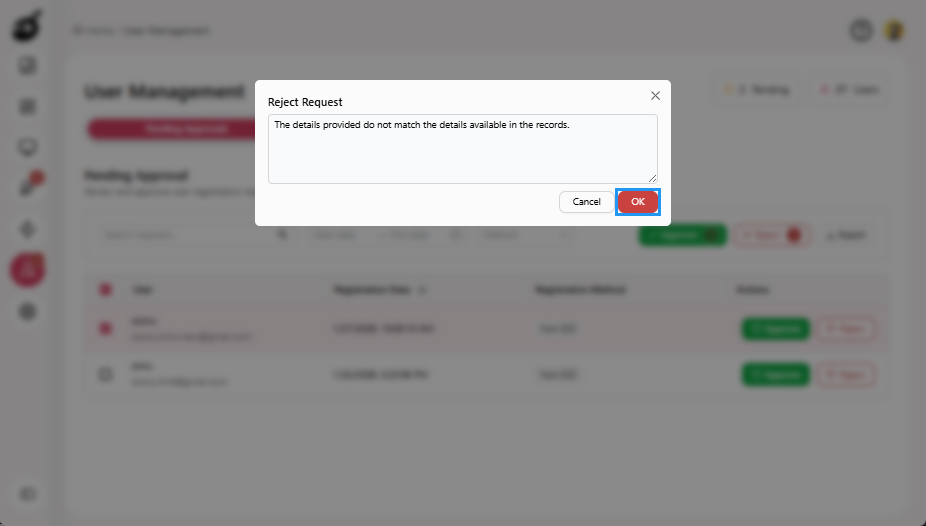
Provide a brief message explaining why the request was rejected and click OK to reject the request.
Sort & Filter Requests
Efficiently managing registration requests is critical for ensuring smooth user onboarding and maintaining control over access to projects or builds. By sorting and filtering these requests, you can easily prioritize, review, and process them using specific criteria. You can filter requests by search keywords, registration method, or registration date and sort them by user's name, registration method, and date to streamline the review process. This not only saves time but also ensures that each request is processed in a timely and organized manner.
Filter Registration Requests by Search
-
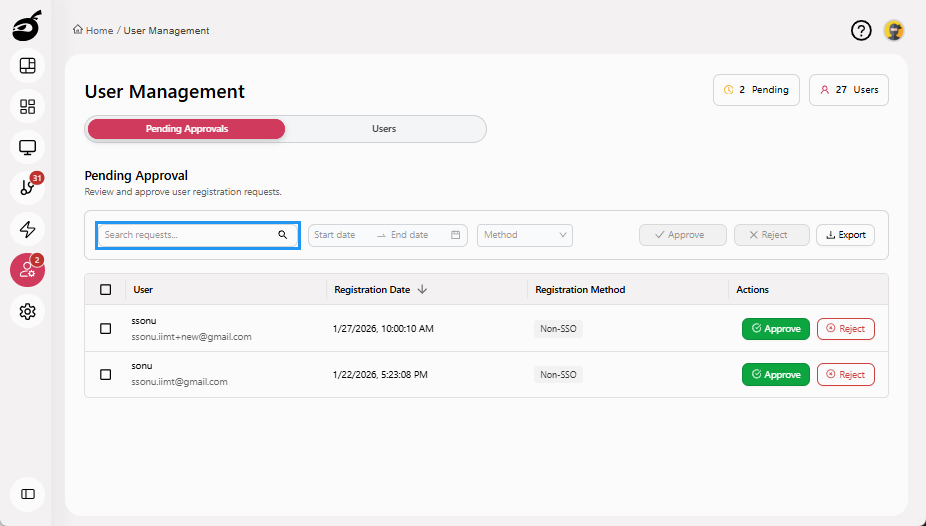
Enter the search keyword in Search Requests present at the top of the Pending Approvals tab. You can search by user's name or email.
Filter by Registration Method
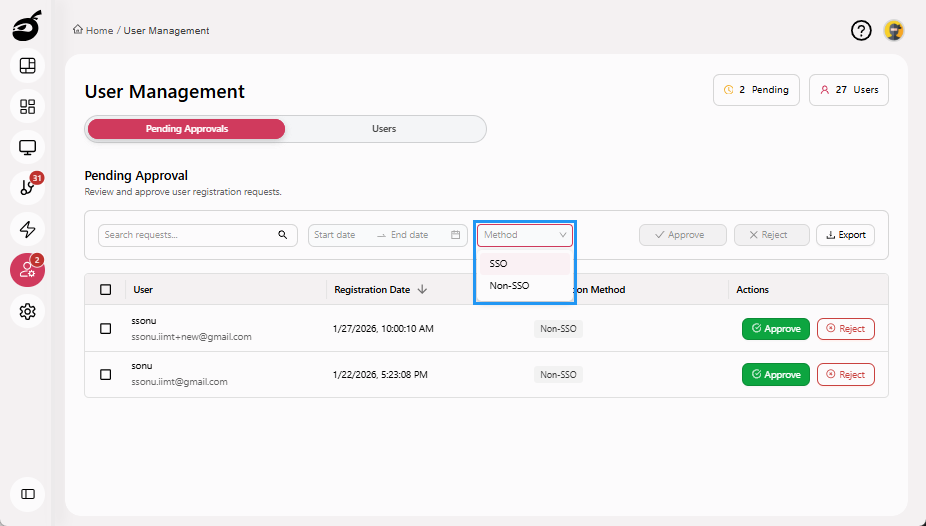
A user can register in BuildNinja through two different sign-up methods: SSO and Non-SSO.
SSO allows users to log in once and access multiple systems or applications seamlessly, whereas Non-SSO requires users to log in separately to each application or system, leading to a less streamlined experience.
-
Click Method filter dropdown present at the top of the Pending Approvals tab and select the registration method. This will allow you to filter requests based on how the user registered.
Filter by Registration Date
-
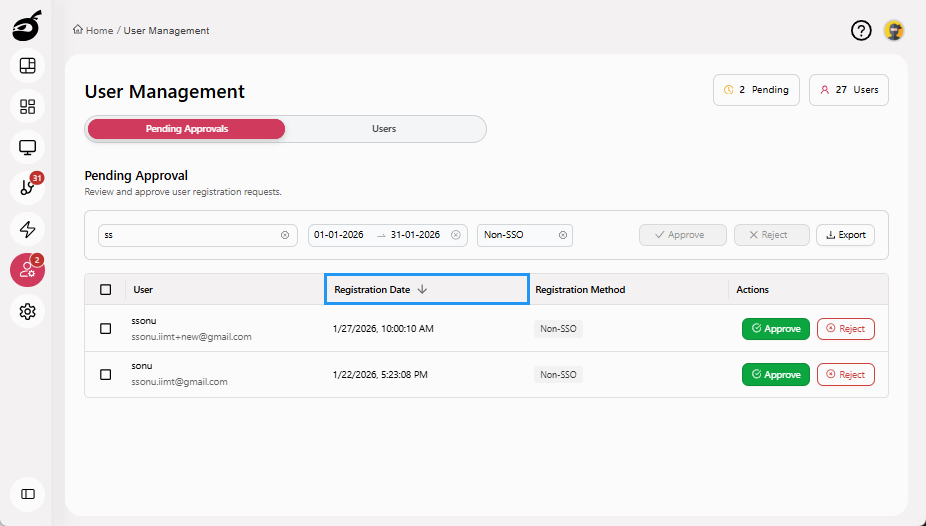
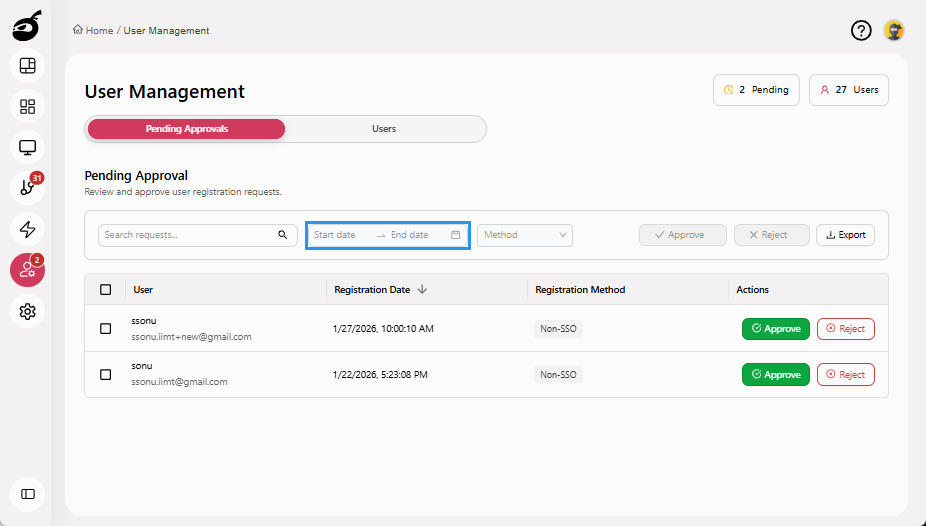
Click Date Filter to find registration requests from a specific period. This allows you to specify a start date and end date to narrow down the list of requests. The list will automatically update to show only those registration requests that match your criteria.
Combine Filters for Advanced Search
BuildNinja allows you to combine search filters to get more accurate results. You can search for requests and filter by registration method, or filter by date and look for a specific request. The list will only show requests that meet your criteria, allowing you to manage the approval process more efficiently.
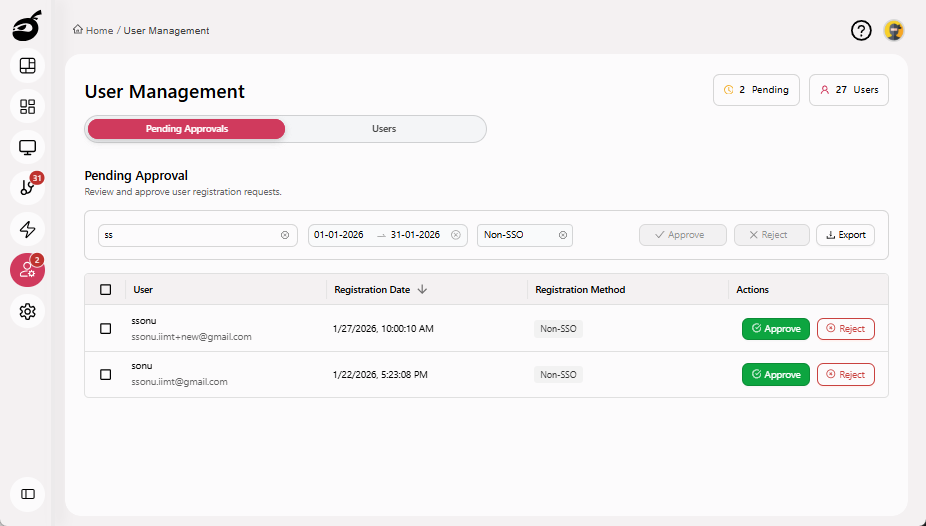
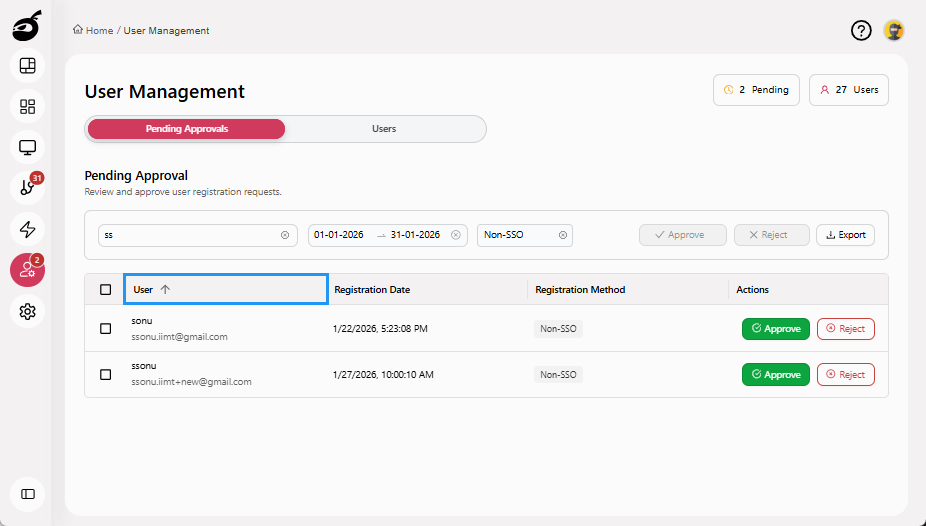
Sort by User's Name
-
Navigate to User column in the requests grid.
-
Click the sort icon to sort the requests by user's name.
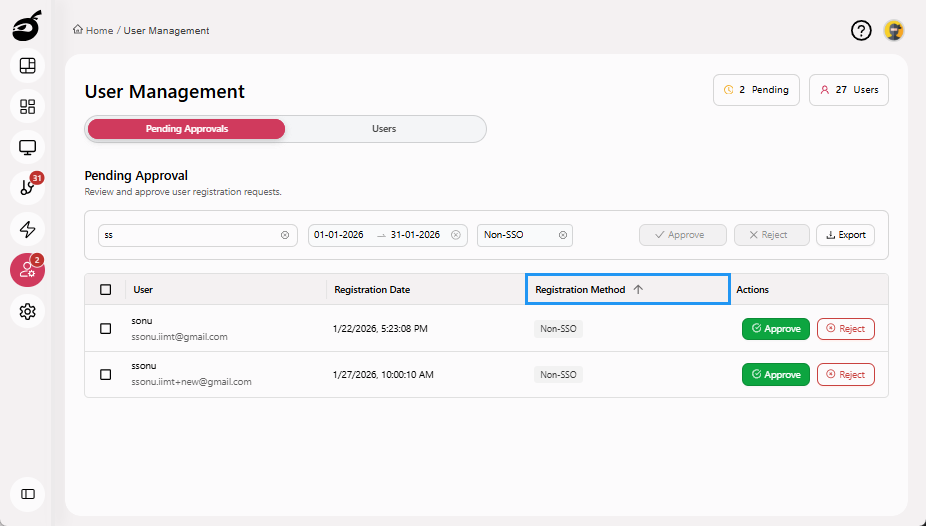
Sort by Registration Method
-
Navigate to Registration Method column in the requests grid.
-
Click the sort icon to sort the requests by registration method.
Sort by Registration Date
-
Navigate to Registration Date column in the requests grid.
-
Click the sort icon to sort the requests by registration date.