Set Up Notifier Settings
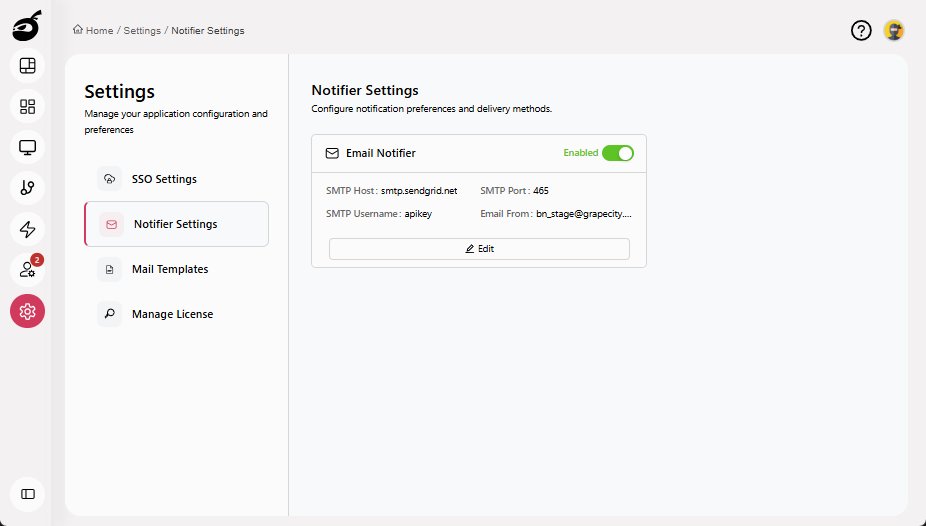
BuildNinja enables you to configure Notifier Settings at the system level. The notifier acts as a global integration for the entire system. Once set up, all project members can use it to receive notifications about build events through their configured notification rules.
To set up notifier settings at the system level:
-
Navigate to Settings
 and open Notifier Settings. A disabled notifier setting card will appear.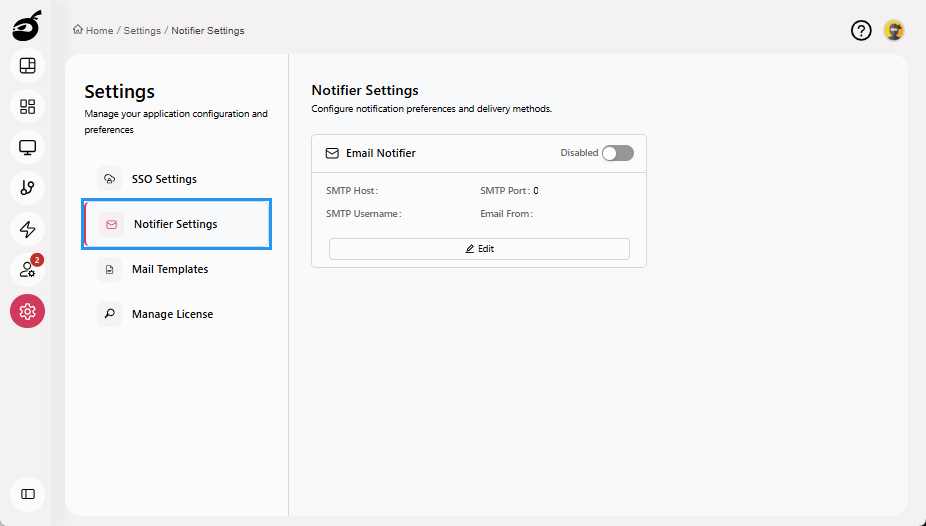
-
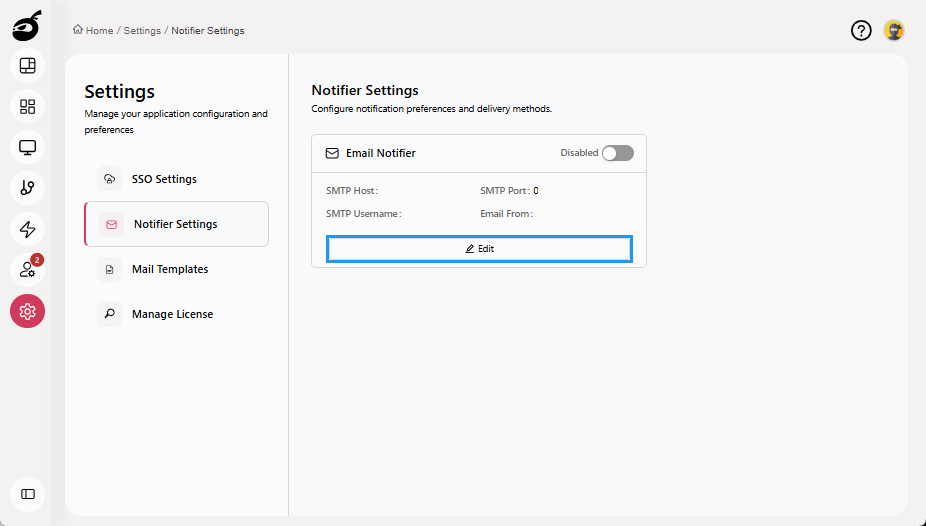
Click Edit to add notifier settings.
-
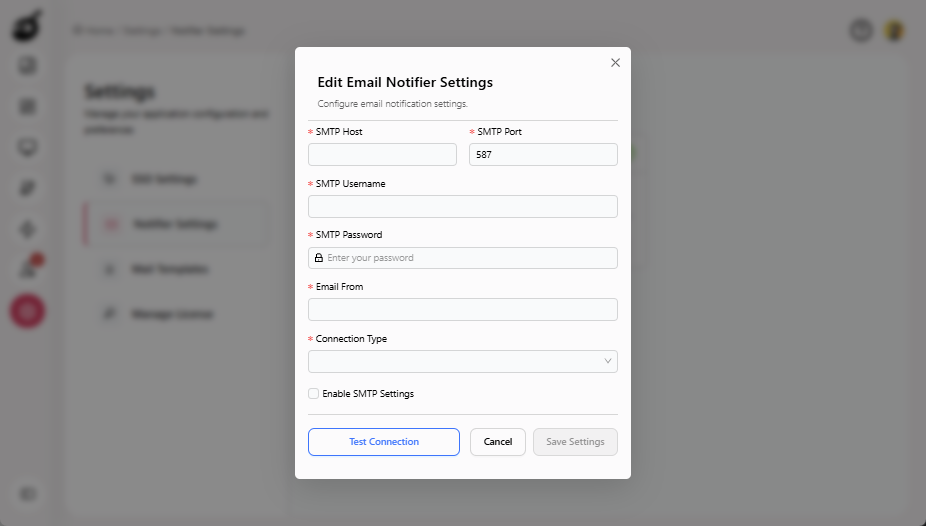
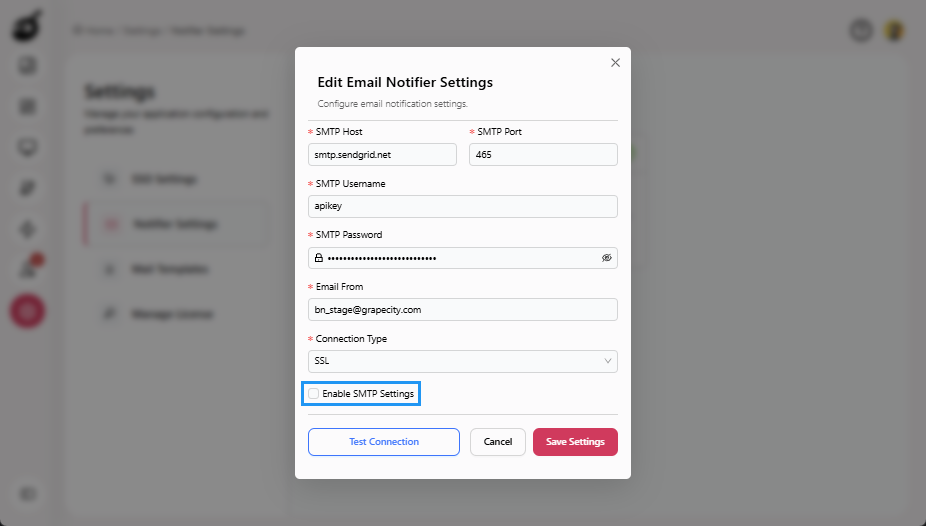
Provide the required configuration details in Edit Email Notifier Settings pop-up:
- SMTP Host: The hostname or IP address of the SMTP server (for example,
smtp.gmail.com). - SMTP Port: The port number used by the SMTP server (for example,
465for SSL or587for TLS). - SMTP Username: The username or email address used to authenticate with the SMTP server.
- SMTP Password: The password or app-specific token for the SMTP account.
- Email From: The email address that appears in the “From” field of build notifications.
- Connection Type: The security protocol for connecting to the SMTP server (SSL/TLS, STARTTLS, or None).
- SMTP Host: The hostname or IP address of the SMTP server (for example,
-
(Optional) Check Enable SMTP Settings checkbox to enable the notifier automatically after saving.
-
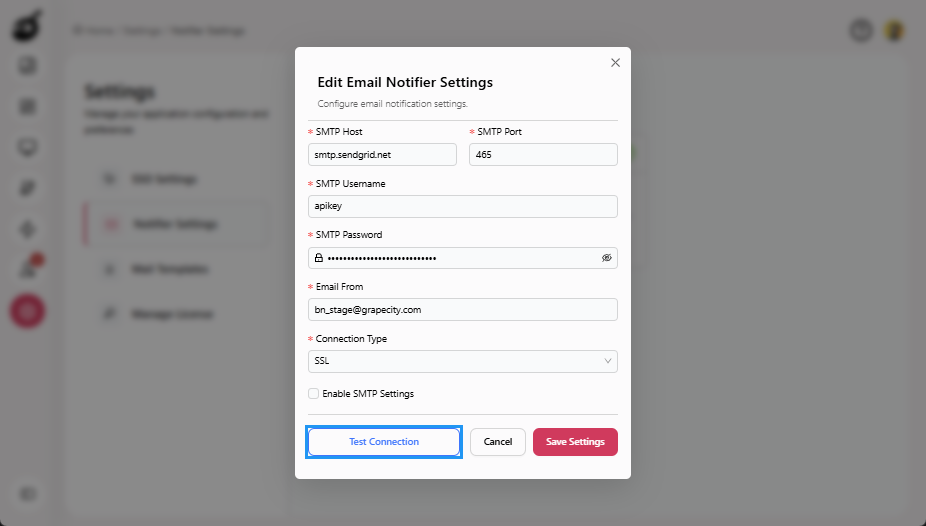
(Optional) Click Test Connection to verify the configuration before saving.
-
Click Save Settings to save the settings.
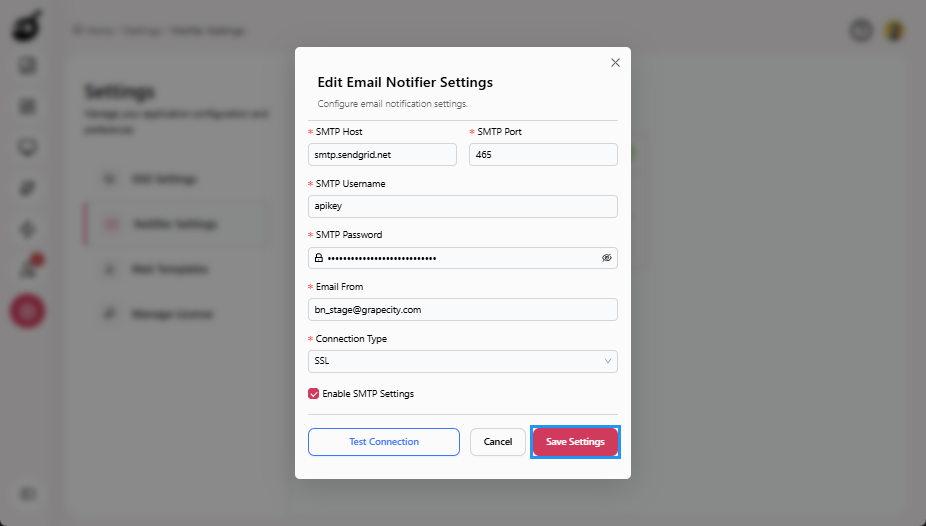
The notifier is now configured at the system level and will automatically be used whenever users set up notification rules for their builds.