Create and Access BuildNinja Account
To get started with BuildNinja, visit the Sign-in page and create an account. Follow the steps below to sign up and set up your account.
Sign Up without SSO
-
Go to the Sign-in page.
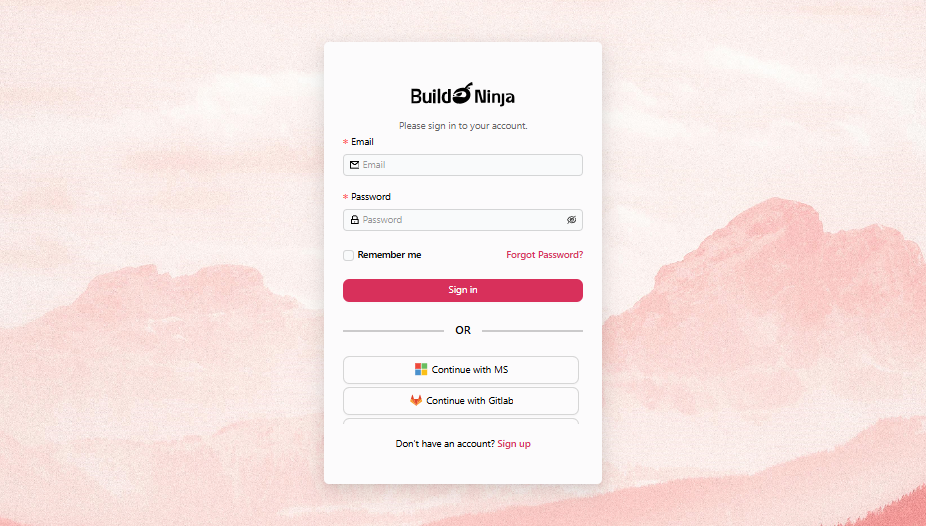
-
Click Sign up to register yourself as a new user.
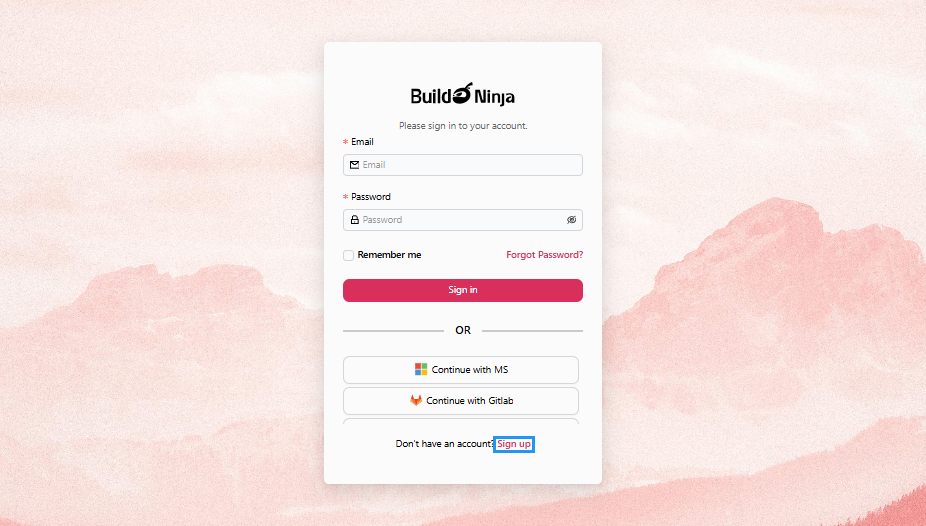
-
Provide the following details:
- Name: The full name of the person registering the account.
- Email: A valid email address where you’ll receive notifications and updates.
- Password: Choose a strong password (minimum 8 characters) using a mix of letters, numbers, and symbols.
- Confirm Password: Enter the password you have entered in the Password field.
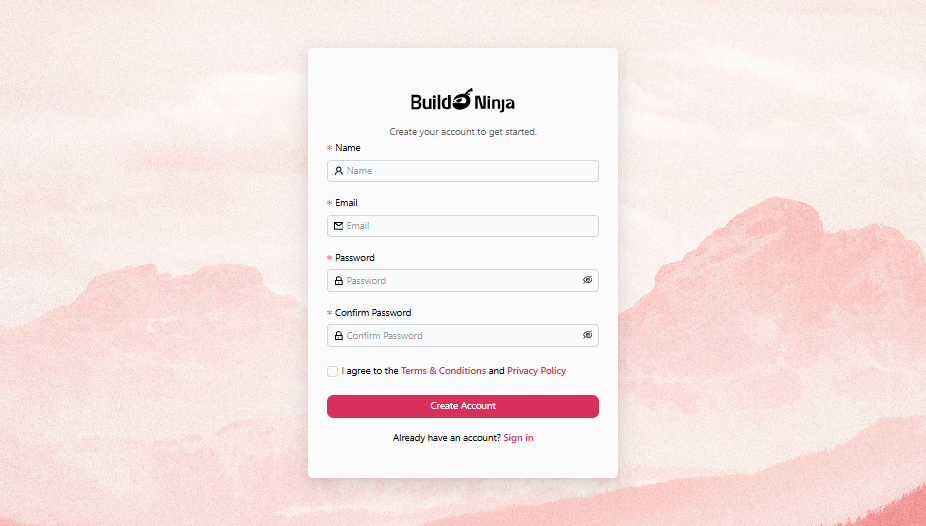
-
After filling in your details and accepting the Terms & Conditions, click Create Account.
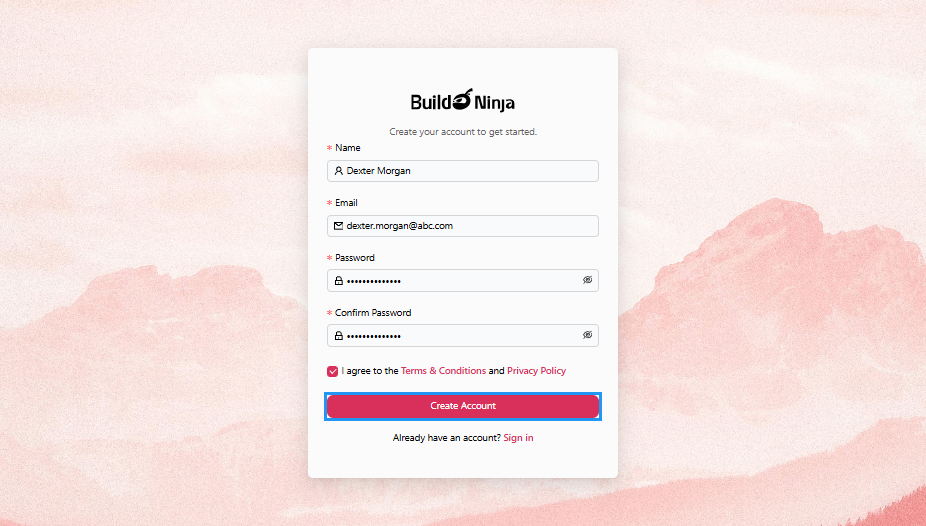
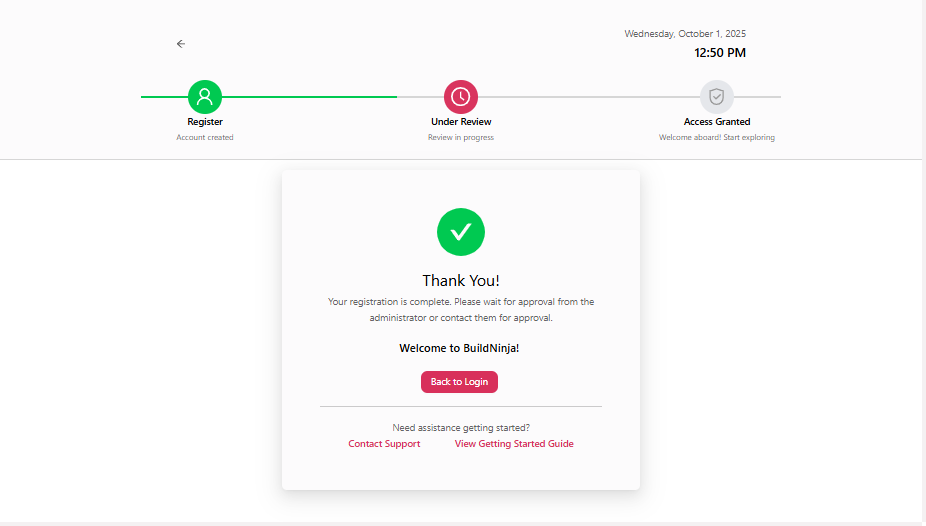
Your registration request will be submitted for approval. An administrator will review your details and approve or reject the request.
Sign Up with SSO
Sign up to BuildNinja with SSOSingle Sign-On (SSO) is an authentication method that enables users to log in once and gain access to multiple connected applications or services without needing to re-enter their credentials. for a faster, more secure sign-in experience. SSO allows you to access BuildNinja with your existing credentials from a supported identity provider, eliminating the need to create and manage separate sign-in information.
Prerequisites:
Before signing up, make sure you have an active account with one of the supported identity providers:
- Microsoft (Azure AD)
- GitHub
- GitLab
- Bitbucket
-
Go to the Sign-in page.
-
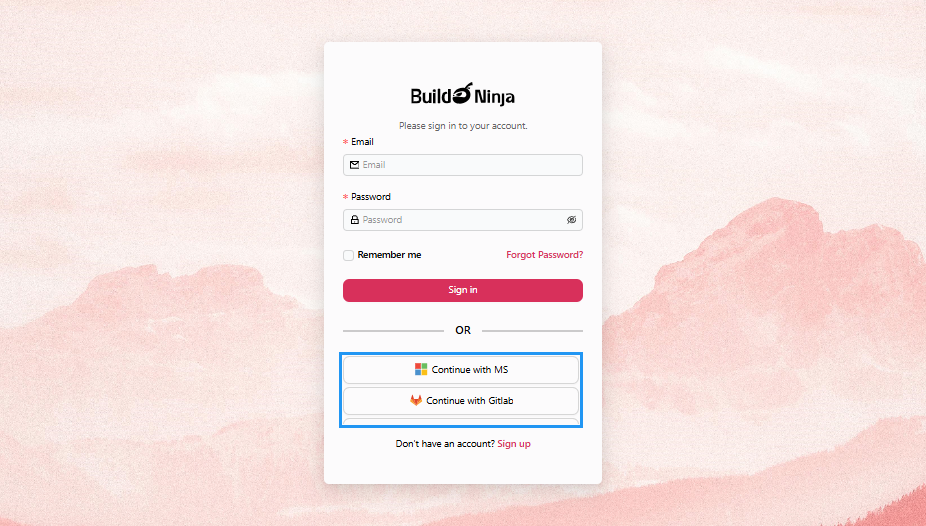
Click your preferred identity provider to sign up and register your account.
-
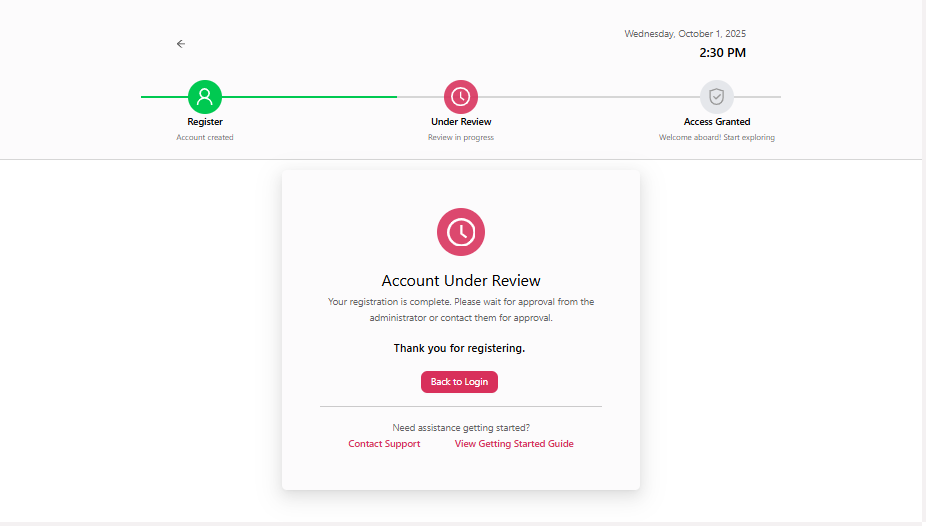
You’ll be redirected to your identity provider’s sign-in page. Sign in using your existing credentials. Once authenticated, your registration request will be submitted for review. An administrator will review your information and approve or reject your request.
Before signing up using SSO, ensure that SSO is properly configured in the system settings. Users will not be able to authenticate via SSO unless it has been set up and enabled by an administrator. For more information, see Manage SSO AuthenticationAs an administrator, configuring Single Sign-On (SSO) authentication is an essential step toward streamlining user access and improving security across multiple applications in your organization..
Sign In to BuildNinja
-
Once the administrator approves your registration request, go to the Sign-in page.
-
Enter the Email and Password you used during registration and click Sign in.
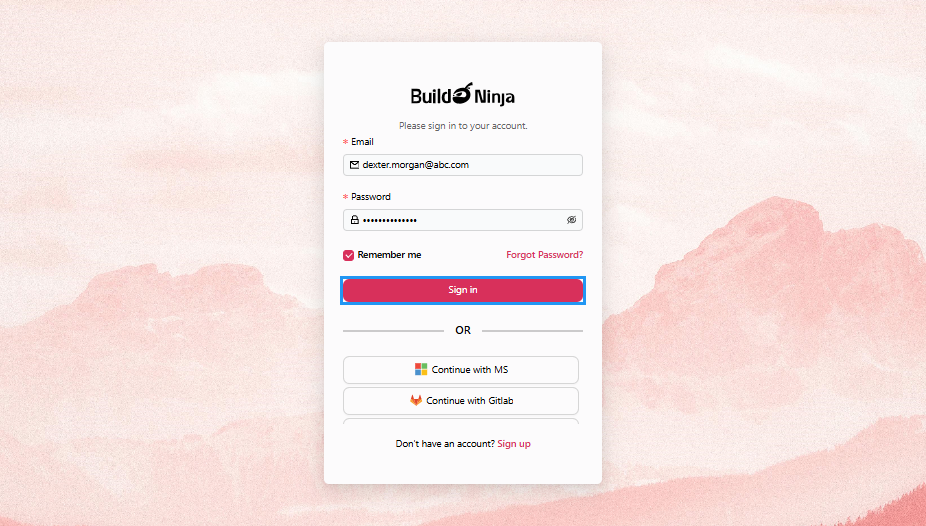
You can also sign in using any supported identity provider, provided you have previously registered with it.