Reset Password
BuildNinja allows you to reset your password through the Profile section, the Forgot Password option on the Sign in page, or by using a Temporary Password provided by an administrator. Follow the appropriate method below to update your credentials securely.
Reset Password via Profile
-
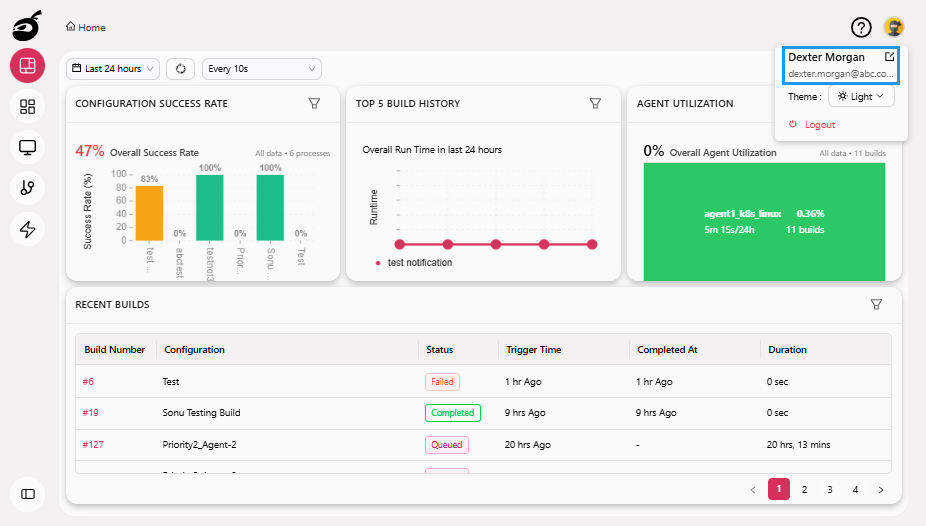
Navigate to your Profile.
-
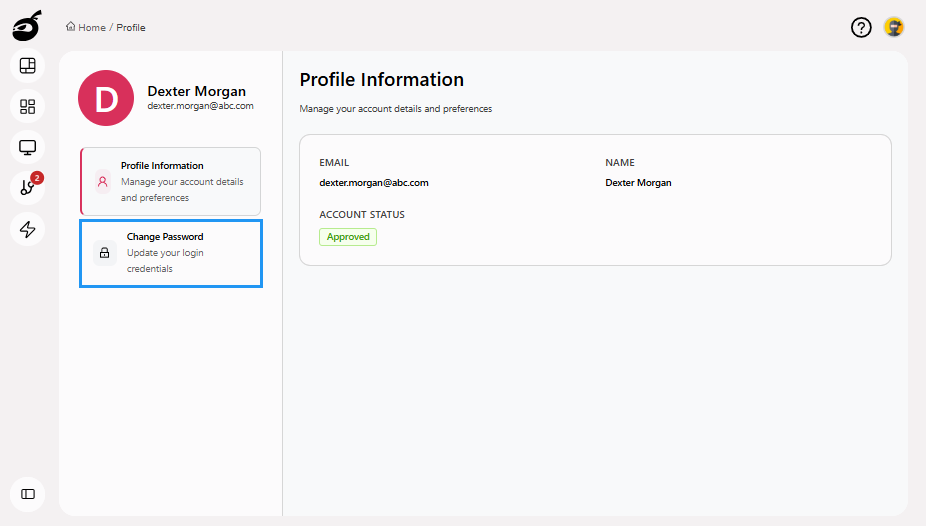
Open Change Password.
-
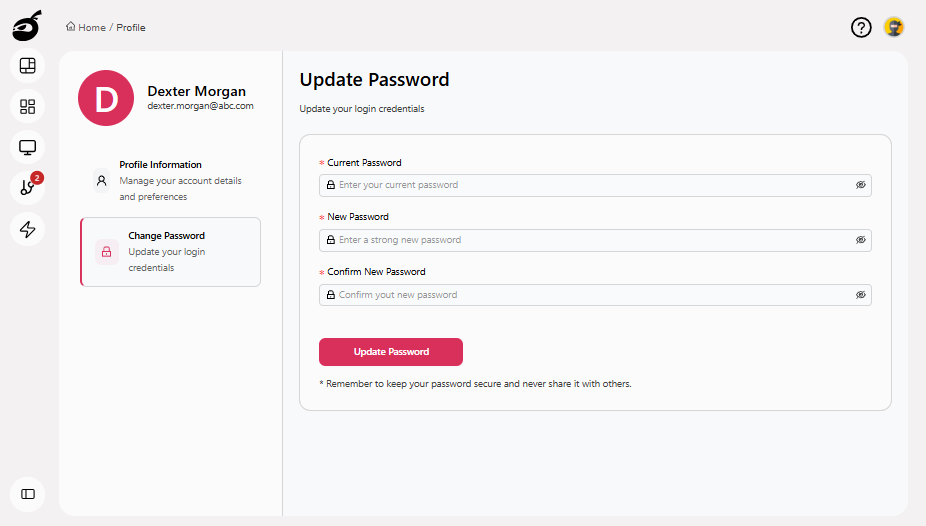
Provide the following details:
- Current Password: The password you are currently using to access your account.
- New Password: Enter a strong password for your account, at least 8 characters with a combination of letters, numbers, and special characters.
- Confirm New Password: Enter the password you have entered in the "New Password" field.
-
Click Update Password to reset the password.
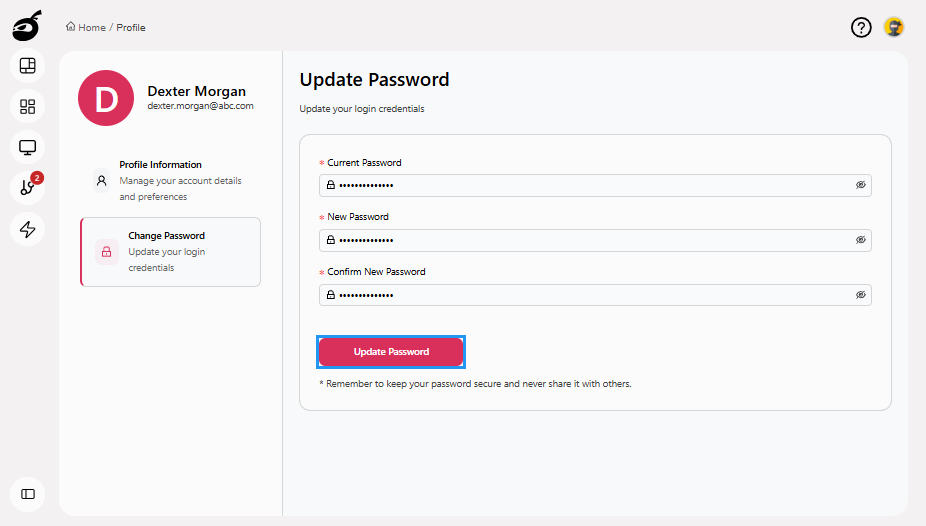
BuildNinja displays a confirmation message once the password has been updated successfully.
Reset Password via Forgot Password
-
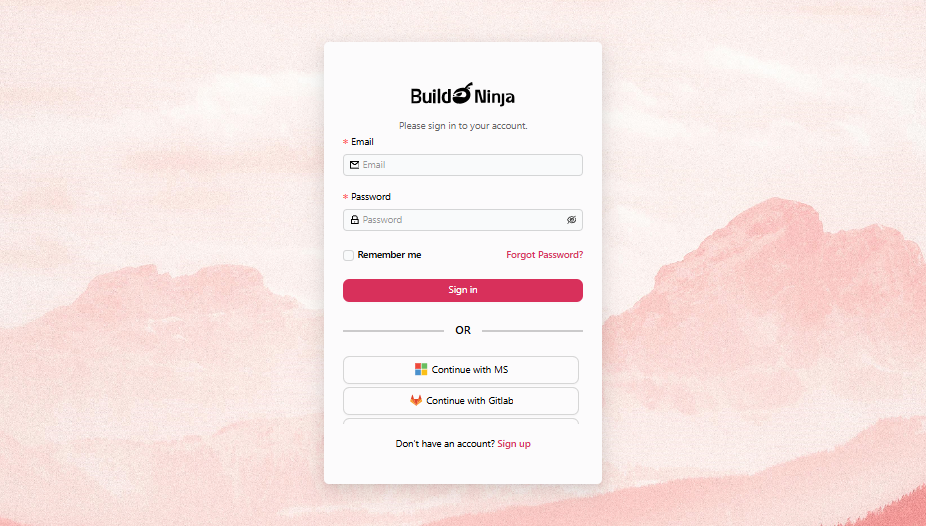
Go to the Sign in page.
-
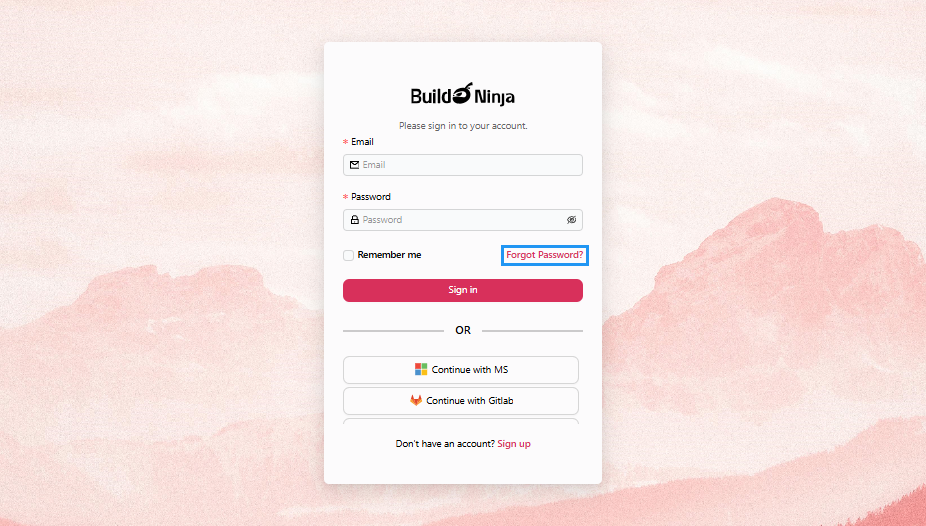
Click Forgot Password? below the sign-in form.
-
Enter your registered email address and click Send Reset Link.
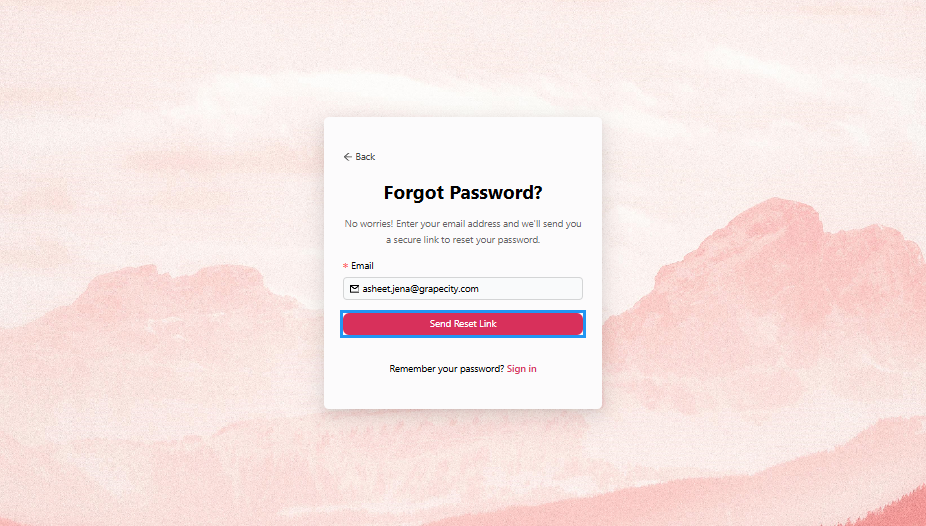
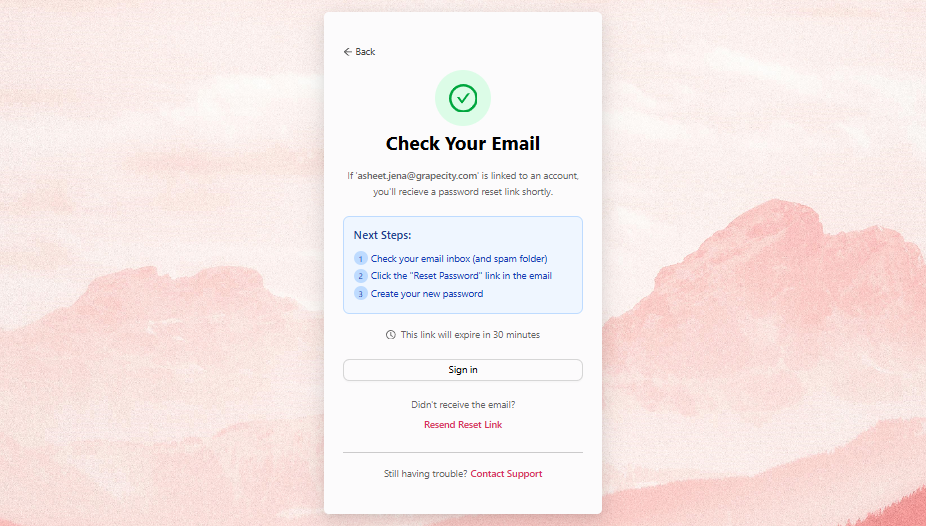
BuildNinja sends a reset password link to your email.
-
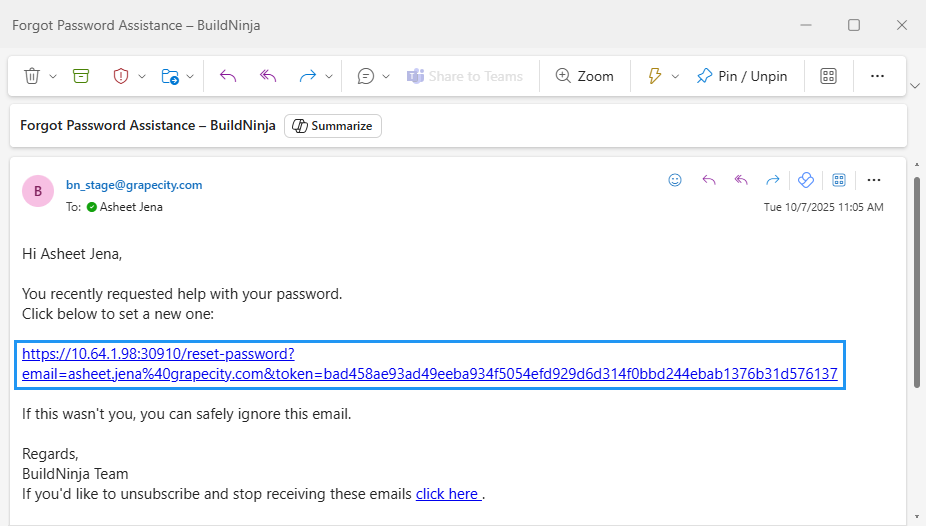
Open your inbox, and click the link provided.
-
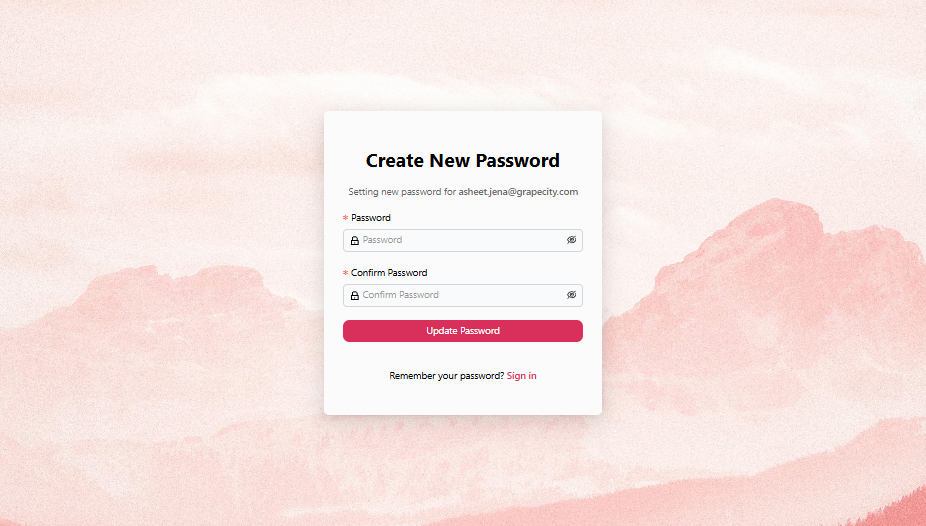
Enter the following details:
- Password: Enter a strong password for your account, at least 8 characters with a combination of letters, numbers, and special characters.
- Confirm Password: Enter the password you have entered in the "Password" field.
-
Click Update Password to reset the password.
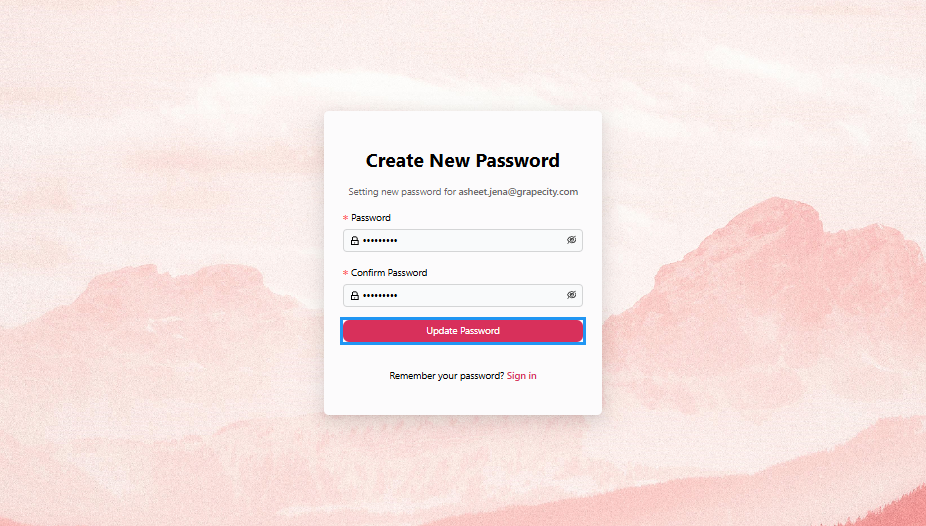 After successfully resetting your password, BuildNinja will redirect you to the Sign-in page, where you can log in with your new credentials.
Reset Password via Temporary Password
-
Go to the Sign in page.
-
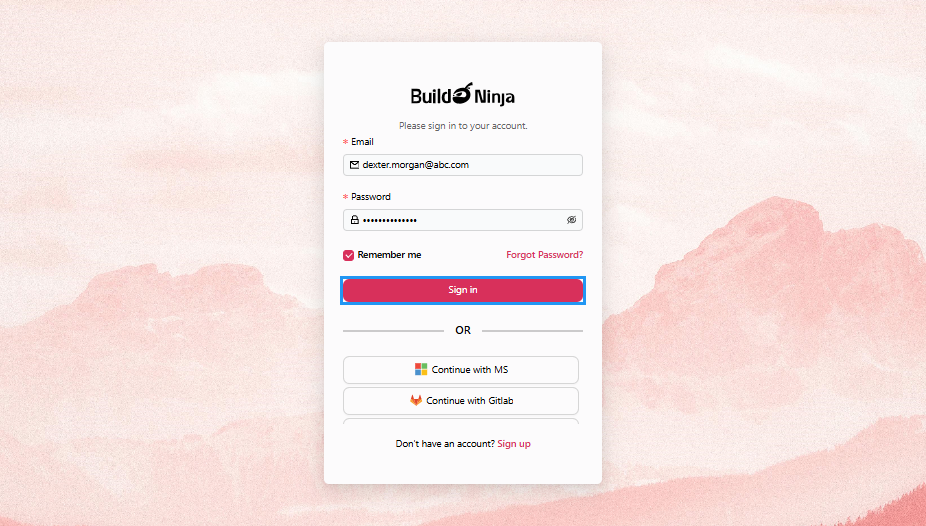
Enter your email address and the temporary password provided by the admin. Then click Sign in button.
-
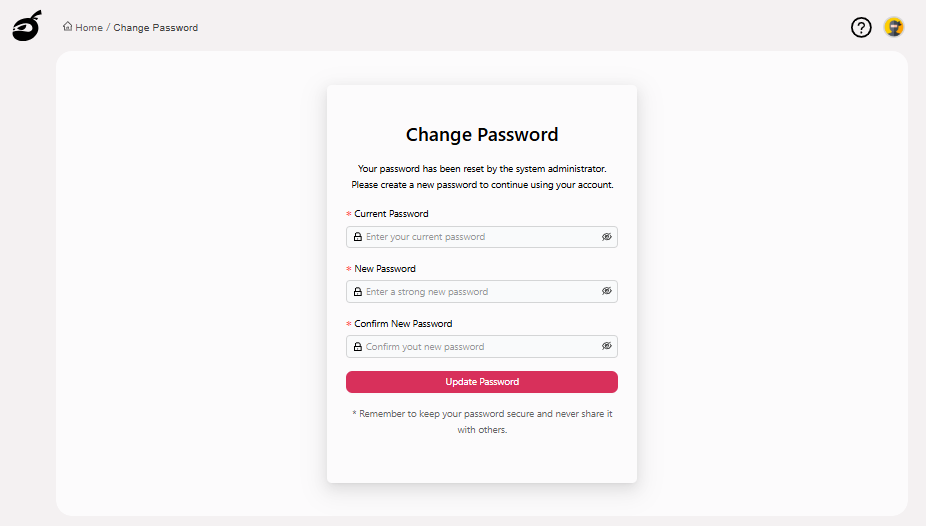
After signing in, the "Sign-in" page will prompt you to reset your password. Enter the following details:
- Current Password: The temporary password provided by the admin.
- New Password: Enter a strong password for your account, at least 8 characters with a combination of letters, numbers, and special characters.
- Confirm New Password: Enter the password you have entered in the "New Password" field.
-
Click Update Password to reset the password.
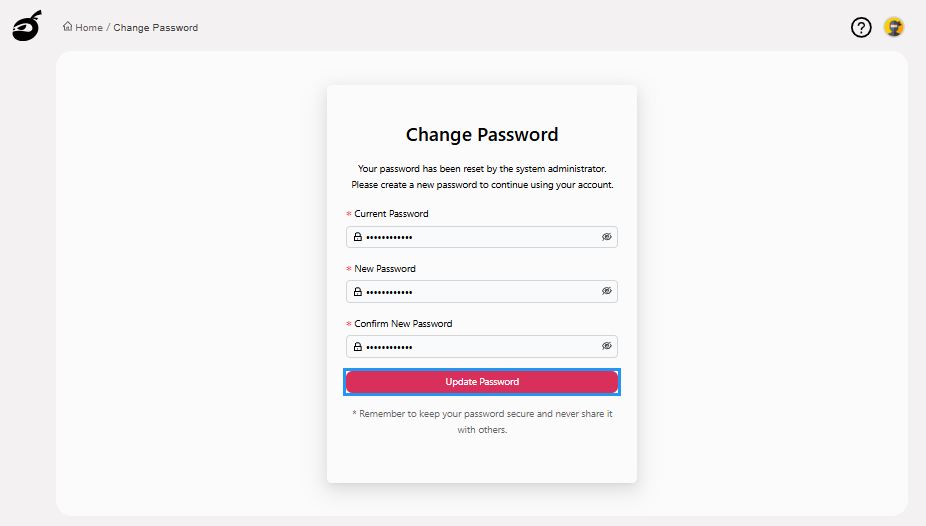 After successfully resetting your password, BuildNinja will automatically redirect you to the Dashboard.