Configure and Deploy with Docker
DockerDocker is an open-source platform that automates the development, shipment, and deployment of applications in lightweight, portable containers. provides an efficient and consistent way to deploy the BuildNinja Server and Agent using prebuilt Docker images. Running BuildNinja in containers simplifies setup, ensures environment consistency, and makes it easier to manage deployments across multiple systems.
Prepare Project Structure
Organize the project directory using the following recommended structure:
project/
└── docker-compose.yml
Deploy Server and Agent Images
-
Create a
docker-compose.ymlfile.docker-compose.ymlversion: '3.8'
services:
# Server service definition.
server:
image: grapehub/buildninja-server:latest # Use the BuildNinja server image with the specified tag.
ports:
- "8800:8800" # Map host port 8800 to container port 8800.
environment:
- BN_SERVER_PORT=8800 # Port the server listens on.
- BN_SERVER_MONGOURI=mongodb://host.docker.internal:27017 # MongoDB connection URI (host machine).
- BN_SERVER_MONGODB=bn_server_stage # Name of the MongoDB database.
# Agent service definition
agent:
image: grapehub/buildninja-agent:latest # Use the BuildNinja agent image with the specified tag.
ports:
- "9500:9500" # Map host port 9500 to container port 9500.
environment:
- BN_AGENT_NAME=agent-linux-01 # Identifier for this agent.
- BN_AGENT_PORT=9500 # Port the agent listens on.
- BN_AGENT_SERVER_URL=http(s)://<your-server-machine-ip>:8800 # Server endpoint the agent connects to.
- BN_AGENT_SELFURL=http(s)://<your-agent-machine-ip>:9500 # Public URL used by the server to reach the agent.infoFor more information on environment variables, see Set Up Environment VariablesThe BuildNinja Server and Agent rely on environment variables to define their configuration and communication parameters. These variables determine how the server manages builds, connects to the database, and handles aut….
-
Run the containers in detached mode.
docker-compose up -d
Mapping a persistent host volume to the container’s BN_SERVER_DATA_DIR ensures that the server retains generated assets across restarts. Since container filesystems are ephemeral by default, any runtime data not stored in a mapped volume will be lost when the container restarts.
Access BuildNinja Web Interface
-
Open a browser and visit
http://<your-server-ip>:8800/.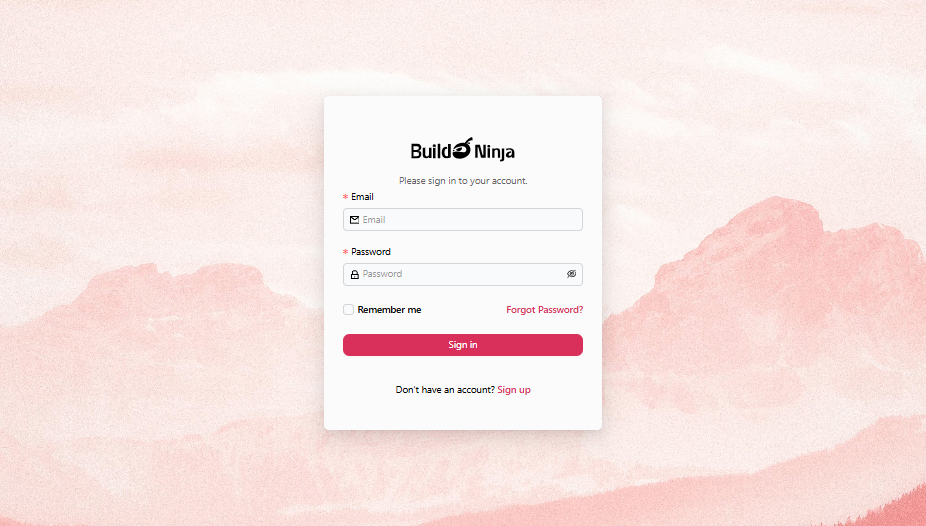
-
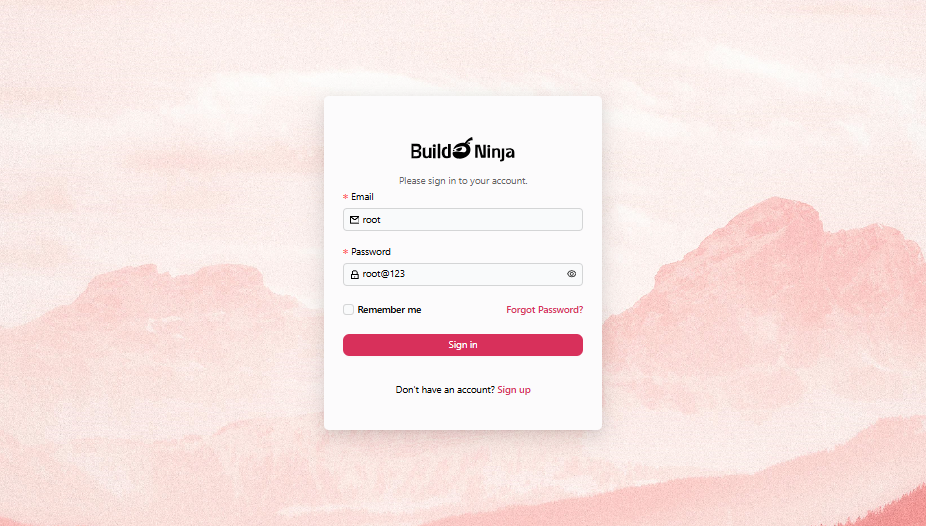
Use the default administrator credentials to sign in:
- Email:
root - Password:
root@123
- Email:
-
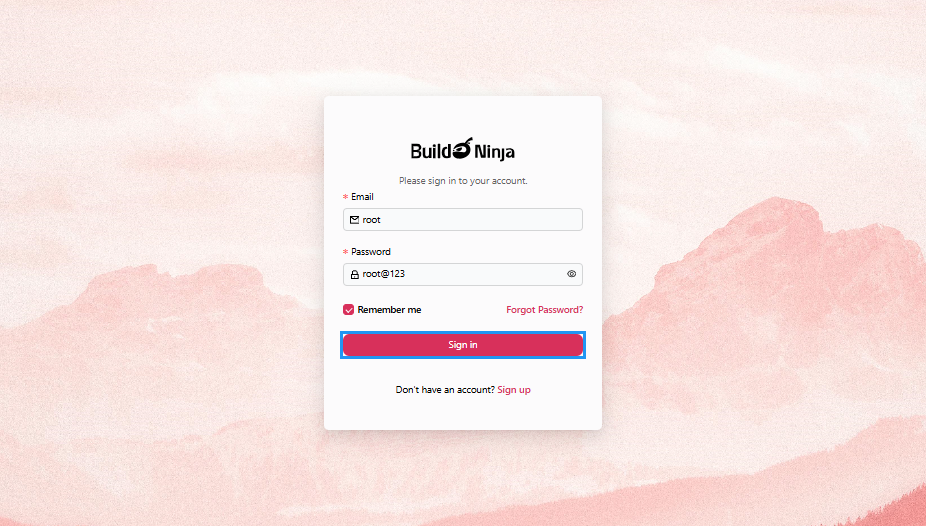
Click Sign in to continue.
-
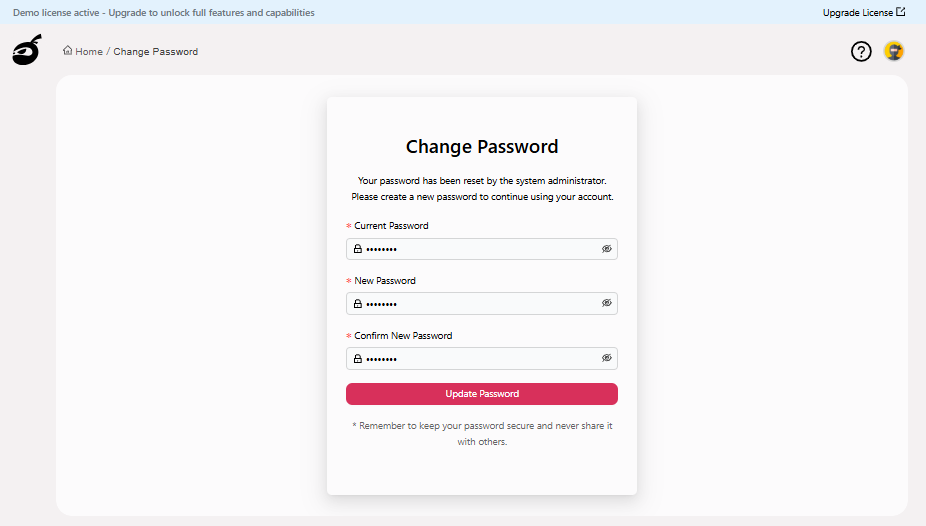
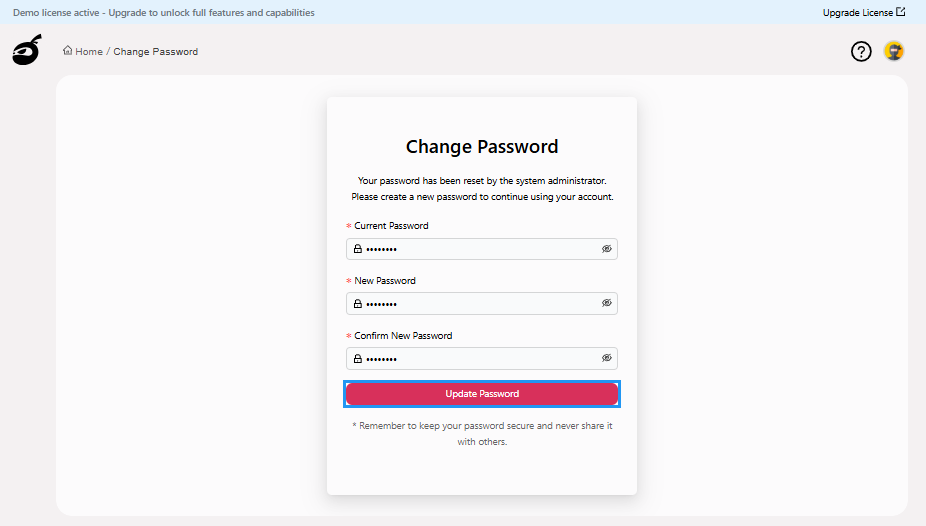
After signing in, the "Sign-in" page will prompt you to reset the password. Enter the following details:
- Current Password: The default administrator password.
- New Password: Enter a strong password for your account, at least 8 characters with a combination of letters, numbers, and special characters.
- Confirm New Password: Enter the password you have entered in the "New Password" field.
-
Click Update Password to reset the password.
 After successfully resetting your password, BuildNinja will automatically redirect you to the Dashboard
  .
.
Verify Agent Registration
The agent attempts to register itself with the server using the provided details. If the registration is successful, the server UI displays the agent in the Agents  section.
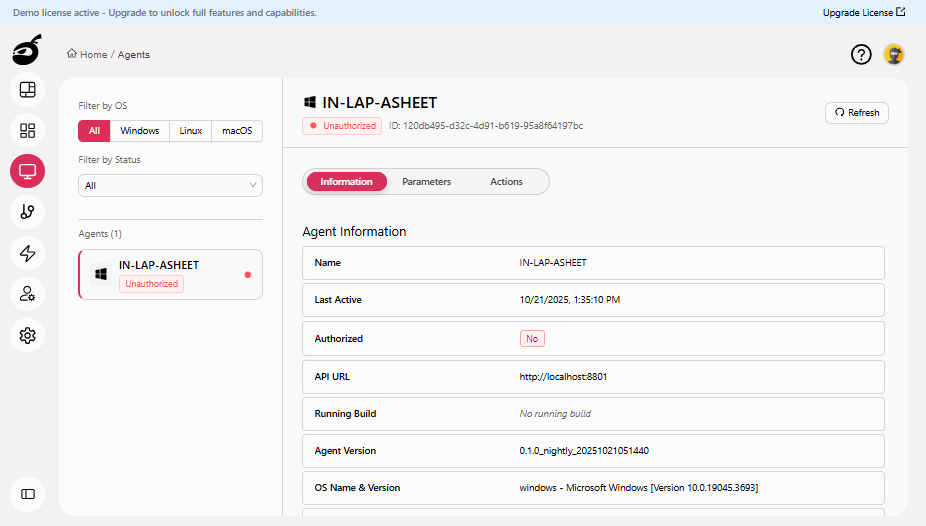
For instructions on authorizing the agent, see Authorize AgentWhen a new agent first registers with the BuildNinja server, it appears in the Agents interface in an unauthorized state. To authorize a newly registered agent: 1..