Manage Licenses
Manage your BuildNinja license to ensure continuous access to premium features, including advanced security, priority support, and enterprise-grade CI/CD functionality. You can activate a new license or renew or upgrade an existing one as needed.
BuildNinja supports both online and offline activation methods:
- Online Activation: Activate your license instantly using the License Key through an internet connection.
- Offline Activation: When your BuildNinja server cannot access the internet, use the Distribution Key to activate your license manually.
Only administrators can insert a license and activate BuildNinja.
Acquire Keys
Prerequisites:
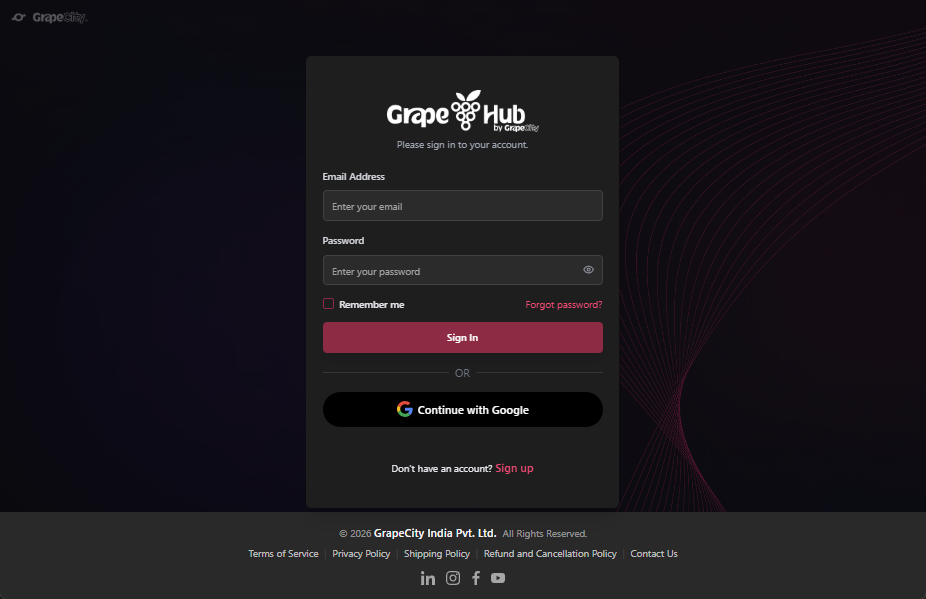
You must have an account on the My Account. If you don’t have one, click Sign up and register.
Generate License Key
-
Open My Account in your browser.
-
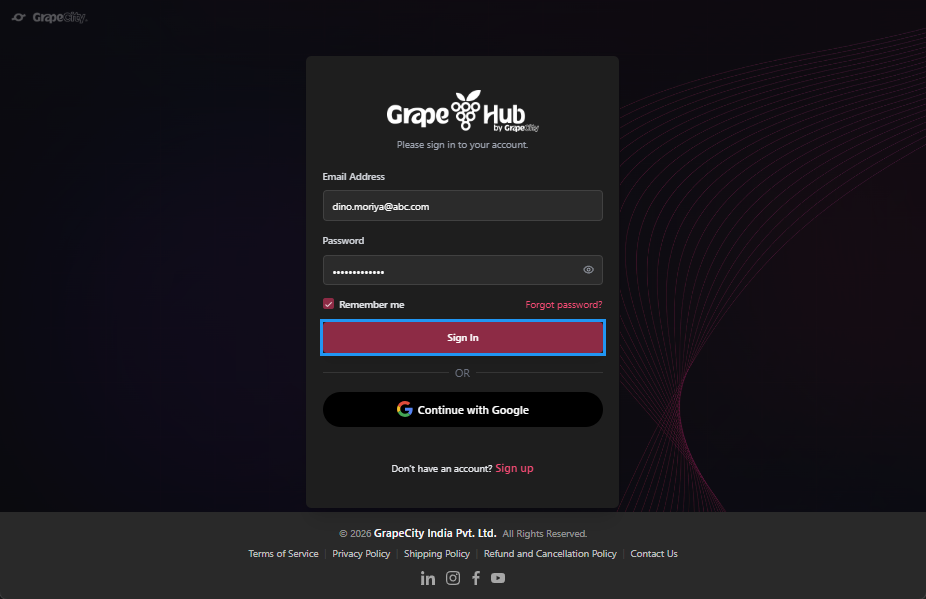
Enter your credentials and click Sign in.
-
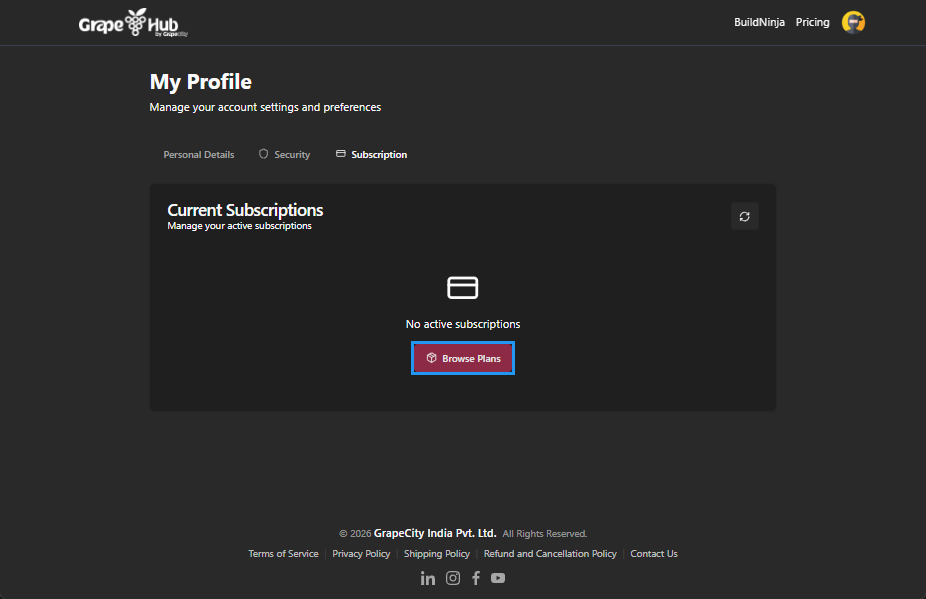
After you sign in, your active subscriptions will be shown. Click Browse Plans to explore all available options.
-
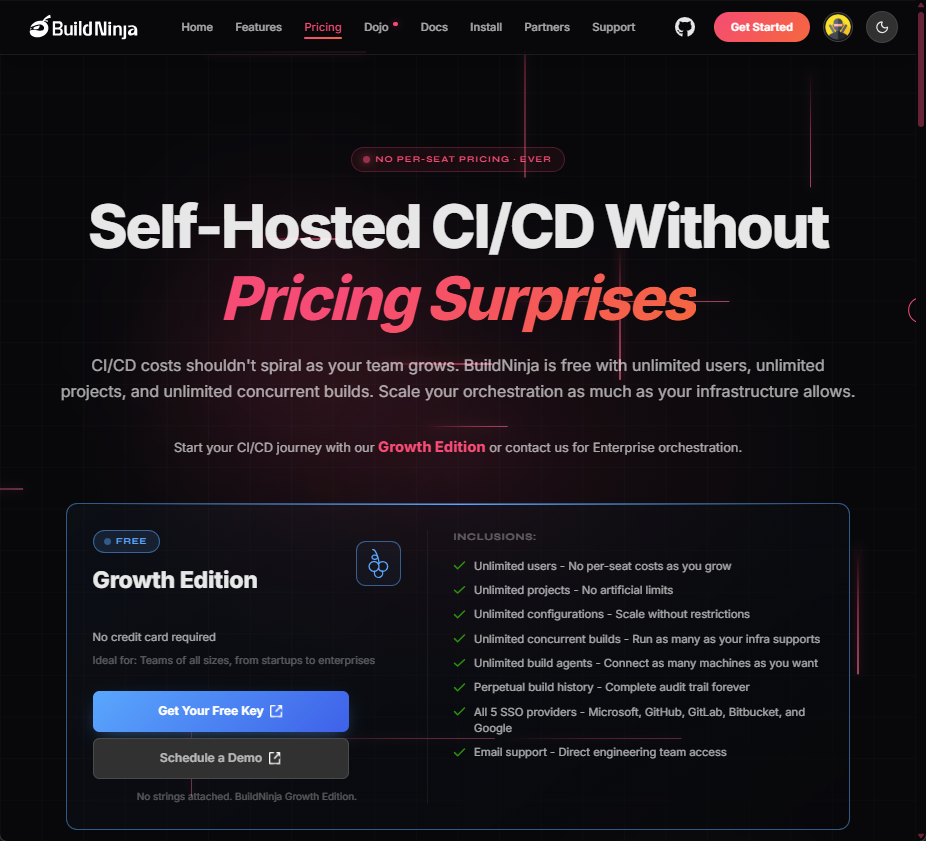
Review the plan and follow the on-screen instructions to complete the payment.
-
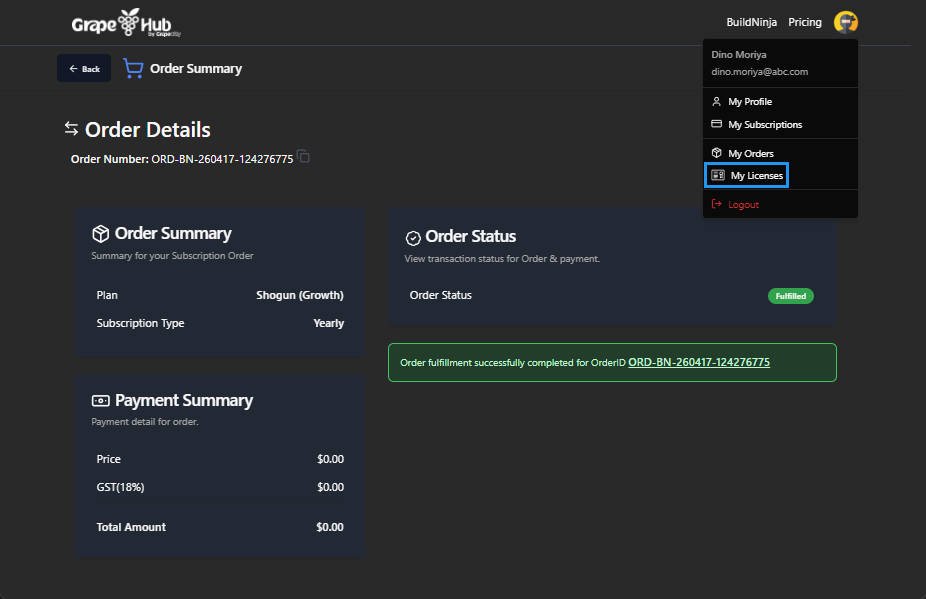
After the payment is successful, click Profile and open My Licenses.
-
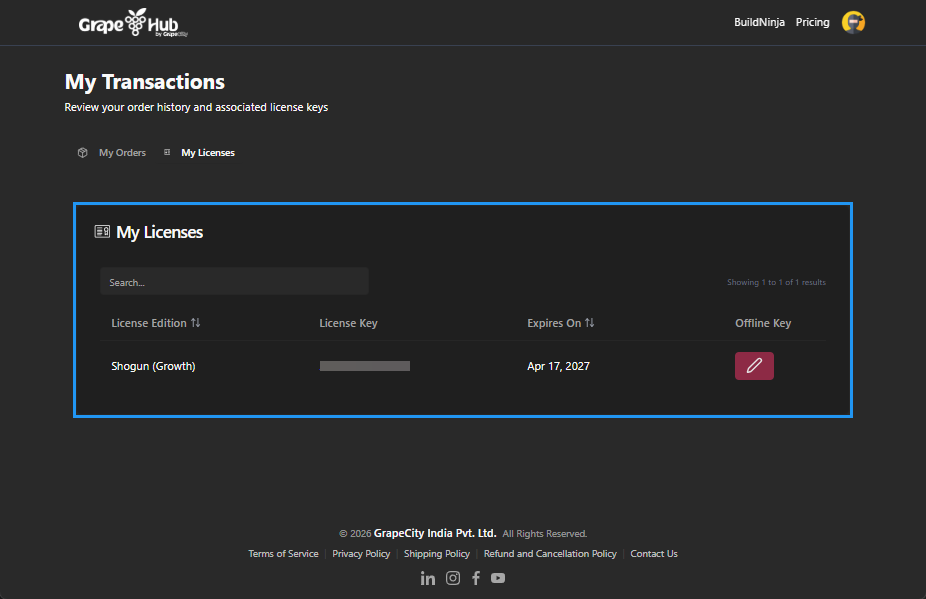
Locate the newly purchased license and copy the License Key for online activation.
For detailed information about available plans and their terms, see Licensing PolicyBuildNinja offers full access to all platform features for all users. However, build execution, services, and entitlements vary based on the user’s licensing and evaluation status..
Generate Distribution Key
-
Click Profile, then open My Licenses from either the BuildNinja website or My Account.
-
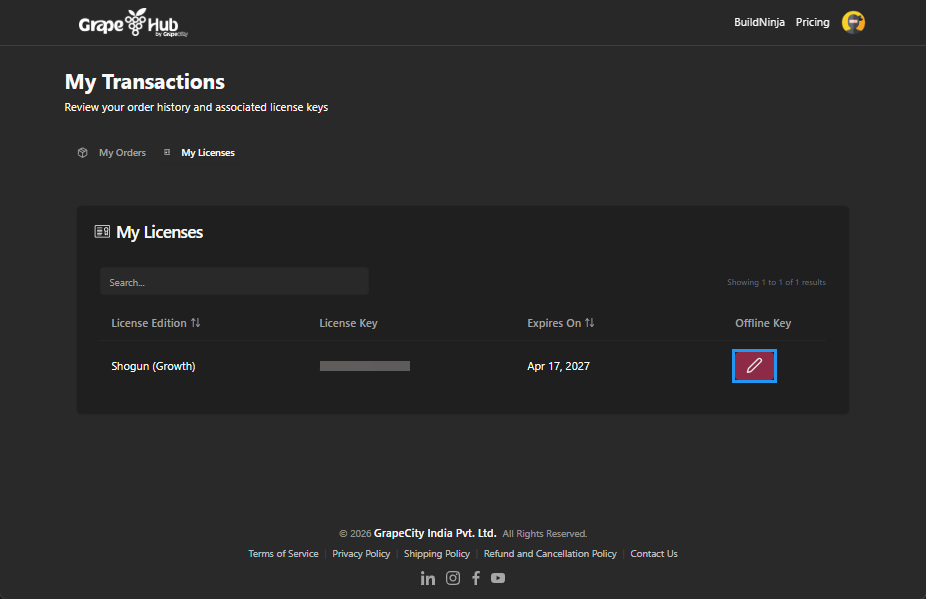
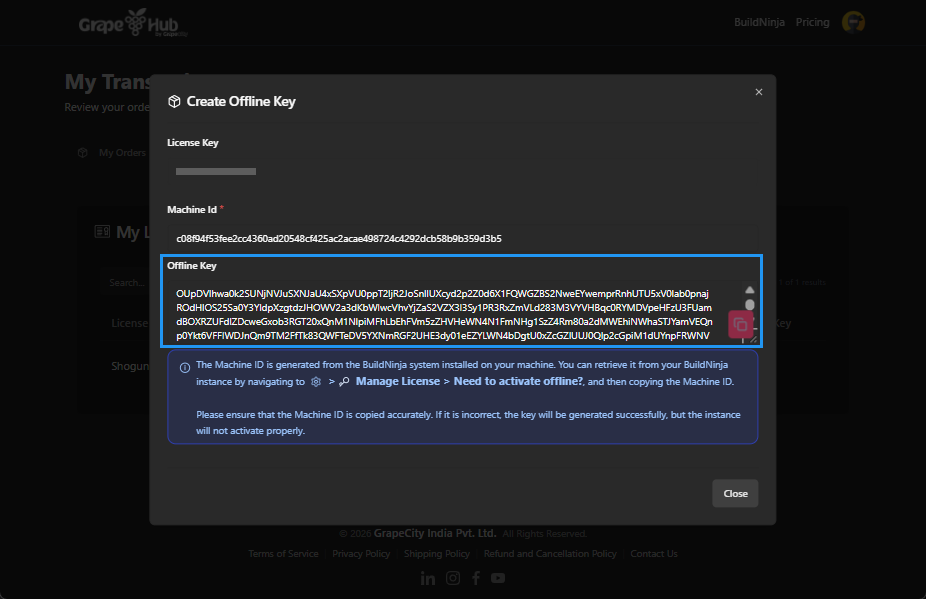
Locate the license you purchased and click Create Offline Key button.
-
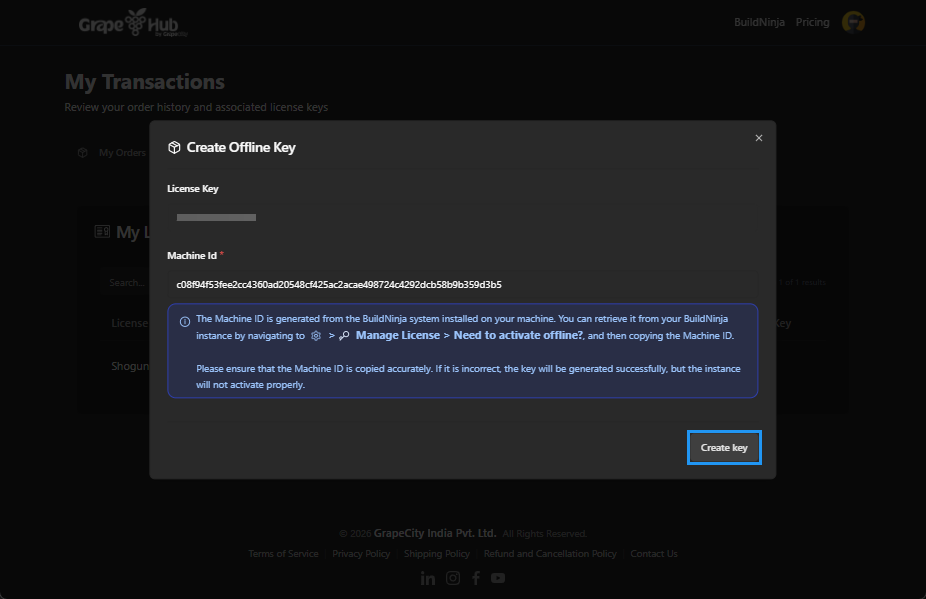
Enter the Machine ID of your BuildNinja system and click Create Key.
-
Copy the generated Offline Key and save it securely.
Access License Tab
-
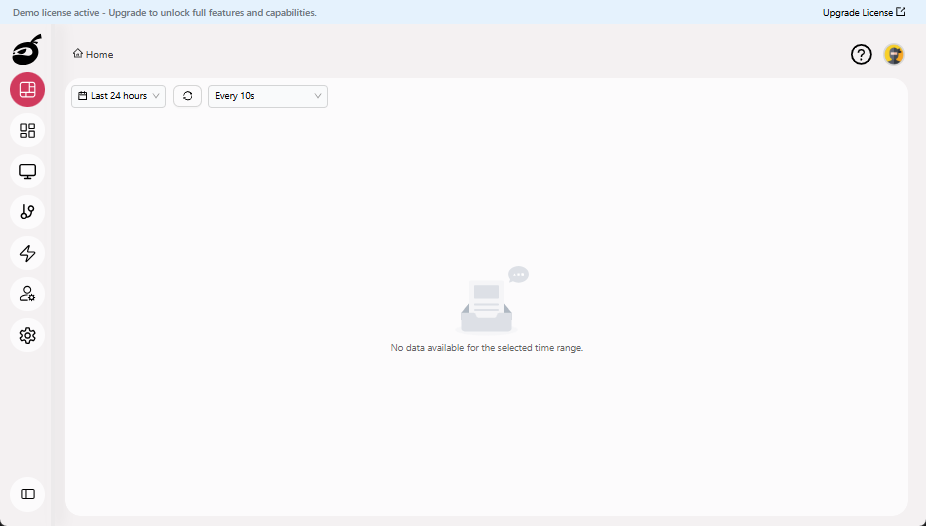
Sign in to your BuildNinja account.
-
Open Manage License from Settings
 , or click Upgrade License on the banner at the top of the page to access Manage License directly.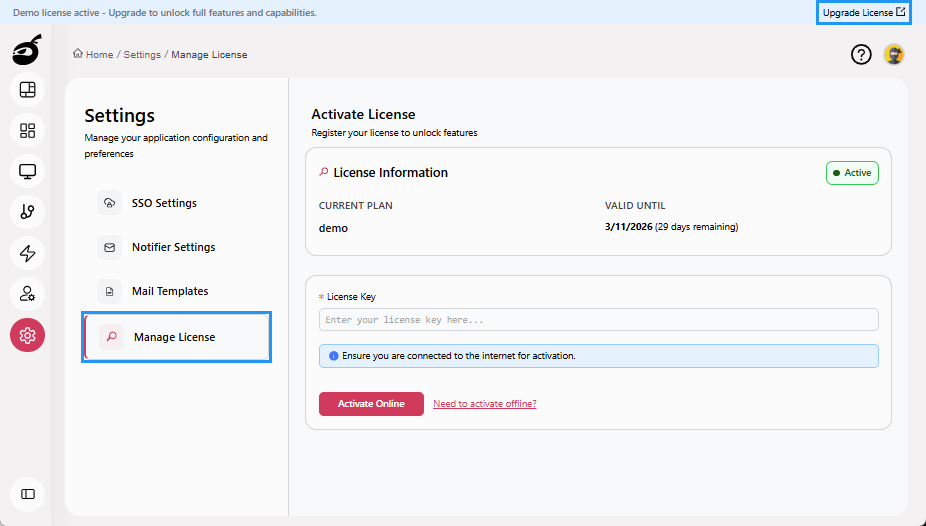
Activate Online
-
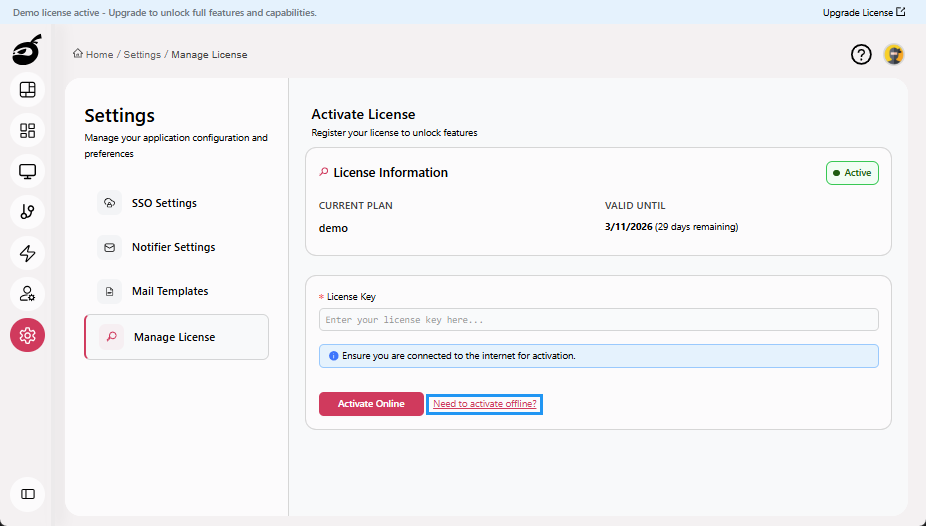
The online activation option appears by default. Enter your License Key and click Activate Online.
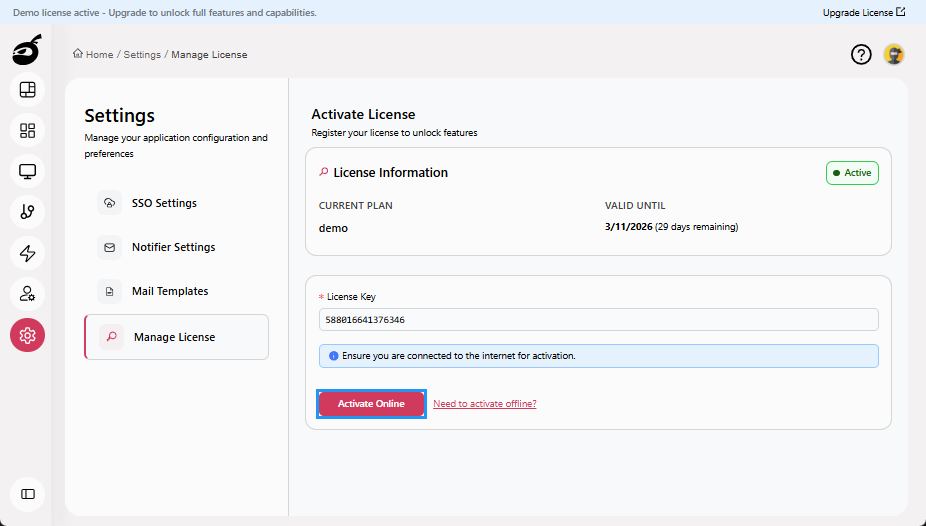
BuildNinja displays a confirmation message and updates your license status.
Activate Offline
-
Click Need to activate offline?.
-
Enter your Distribution Key and click Activate Offline.
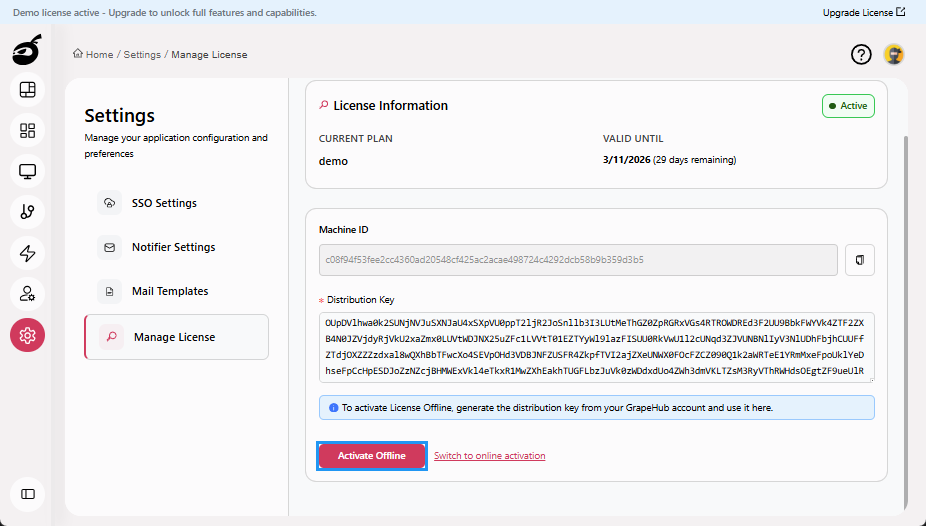
BuildNinja displays a confirmation message and updates your license status.